
Signing in an External Application
The signature is created outside the Buildary application, for example in Adobe Acrobat Reader or PDF-XChange Editor. From the user's perspective, this is the most labor-intensive of all signing methods offered by Buildary.online. In the past, this was the only signing option available in the Buildary web application. Since version 4.0, significantly more user-friendly signing methods have been available. Therefore, there should be a specific reason for choosing this option.
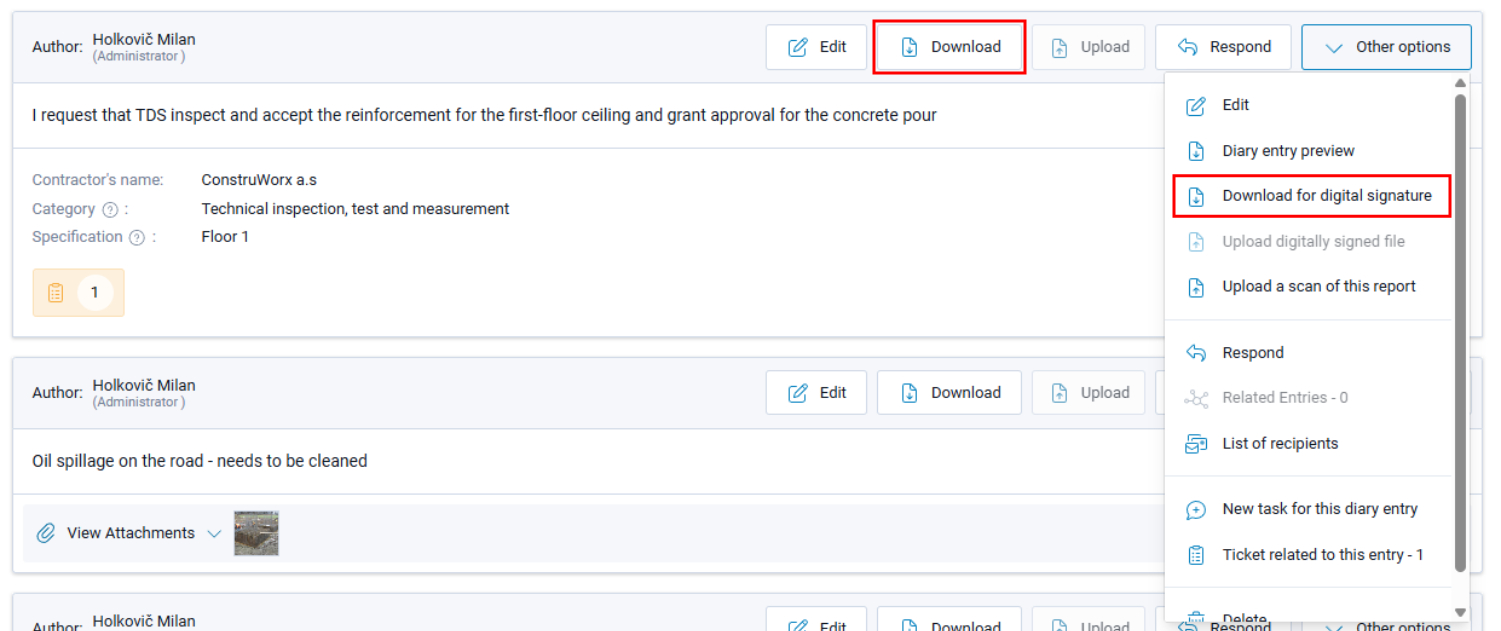
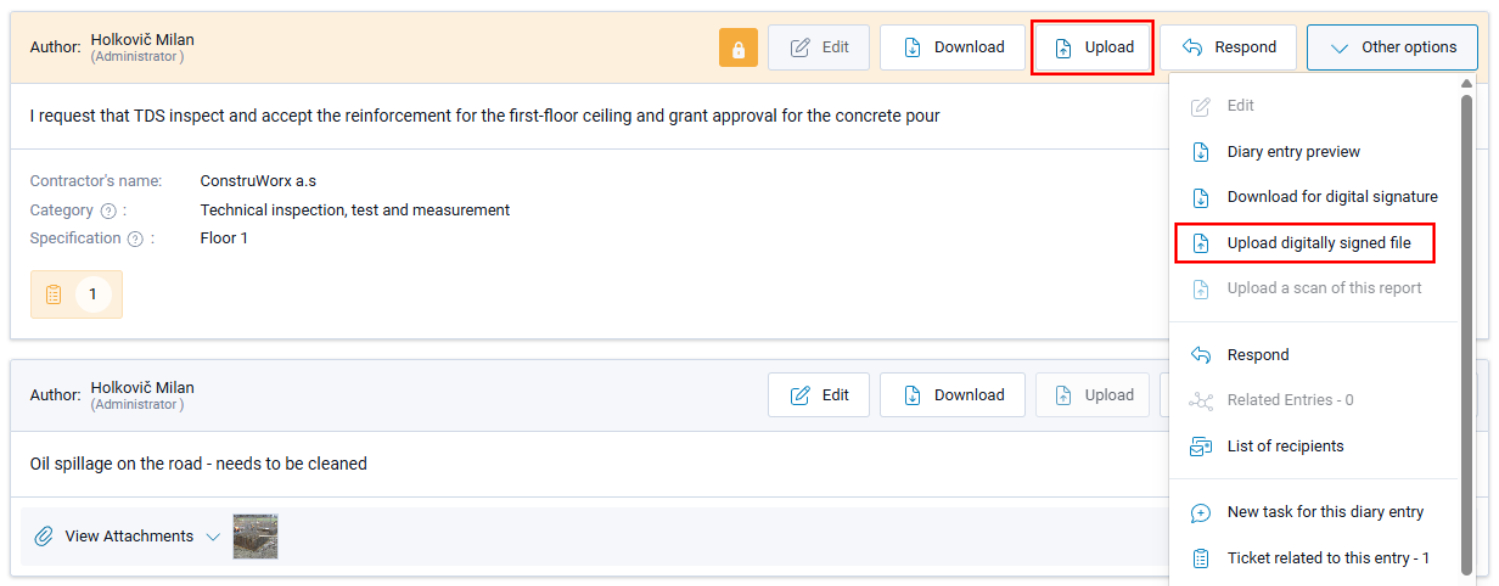
With this setting enabled, the application displays the Download for electronic signing button instead of the Sign button. This downloads the PDF file to your computer or mobile device. You then sign the file in an external application, such as Adobe Acrobat Reader. The signed file is then uploaded back to Buildary using the Upload signed file button.
The type and legal status of the signature created using this procedure depend on the certificate you use.
Before downloading a report for signing, we recommend reviewing the data directly in Buildary and resolving any discrepancies. Only download the report for signing once the data is fully prepared and ready to be signed.
The procedure for signing a Further Record report and a Daily Report is the same:
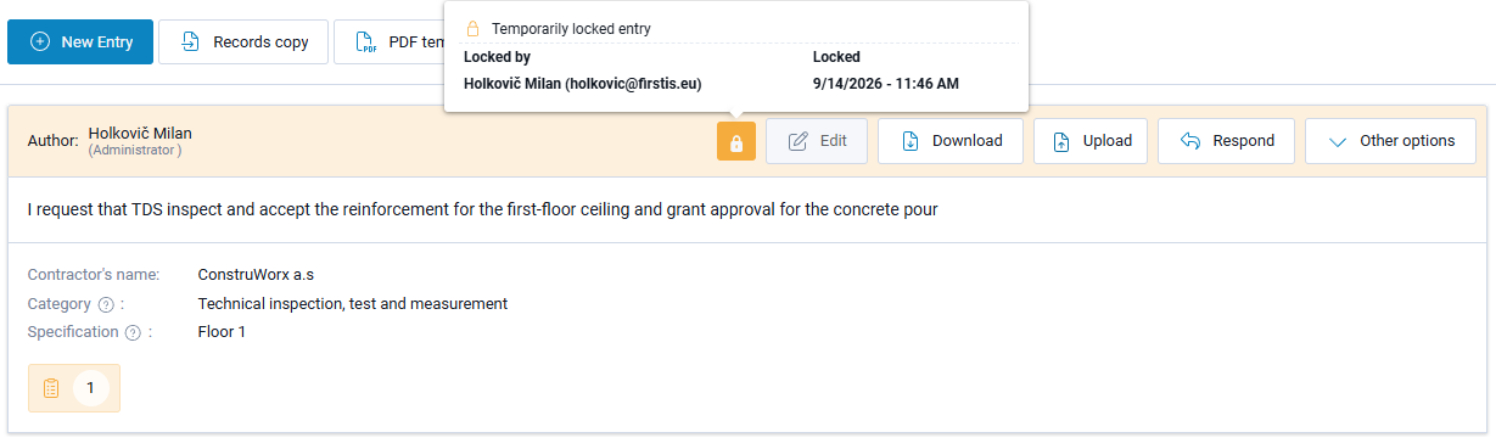
* Select Download for electronic signing via More Options, or click the Download button. The application generates the report in PDF format, if it does not already exist, or downloads the existing report. At the same time, the record or day is locked with a so-called temporary lock, indicated by a yellow color and a lock icon. The lock prevents all users from making any changes.
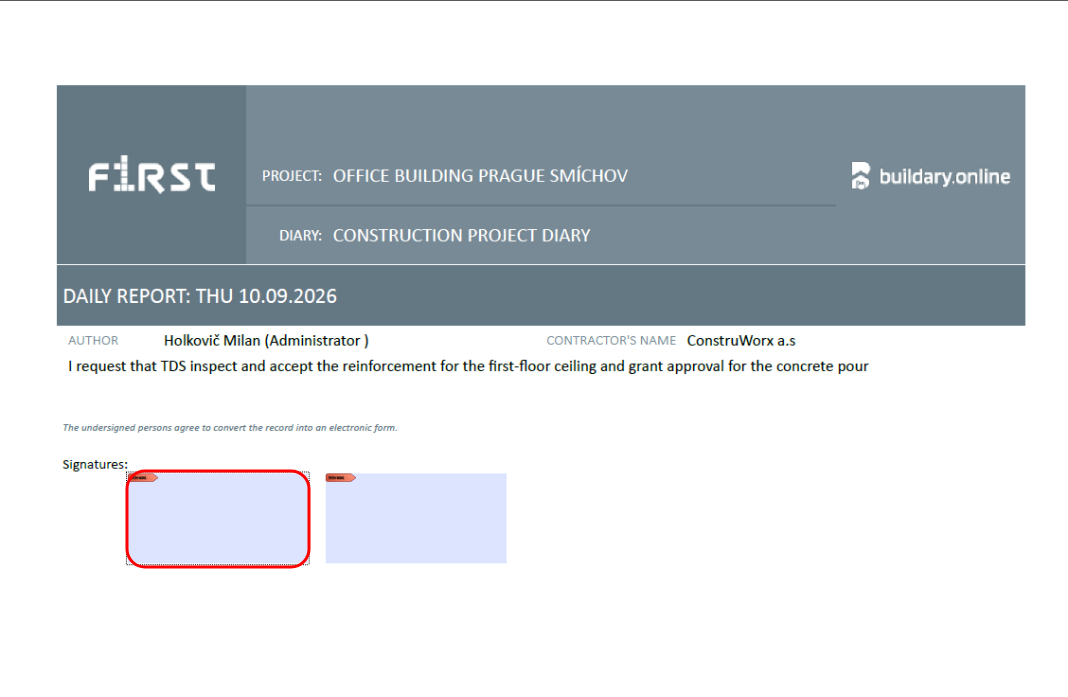
* Open the file in Adobe Acrobat Reader DC, where you can review and sign it. Click the signature field marked with a red border.
* A window displaying the available certificates opens. Select the appropriate certificate.
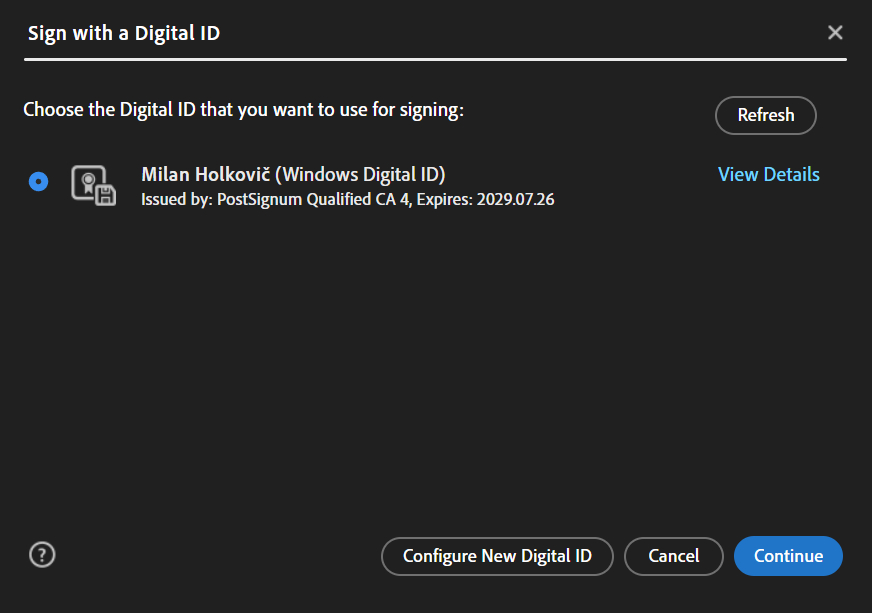
* If you do not have a certificate, you can create one by selecting Configure New Digital ID. A wizard will guide you through the creation process. In the next step, you can select or modify the appearance of the signature and then click Sign to sign the document.
* Acrobat Reader will prompt you to save the file. We recommend creating a dedicated folder specifically for this purpose and saving the files there.
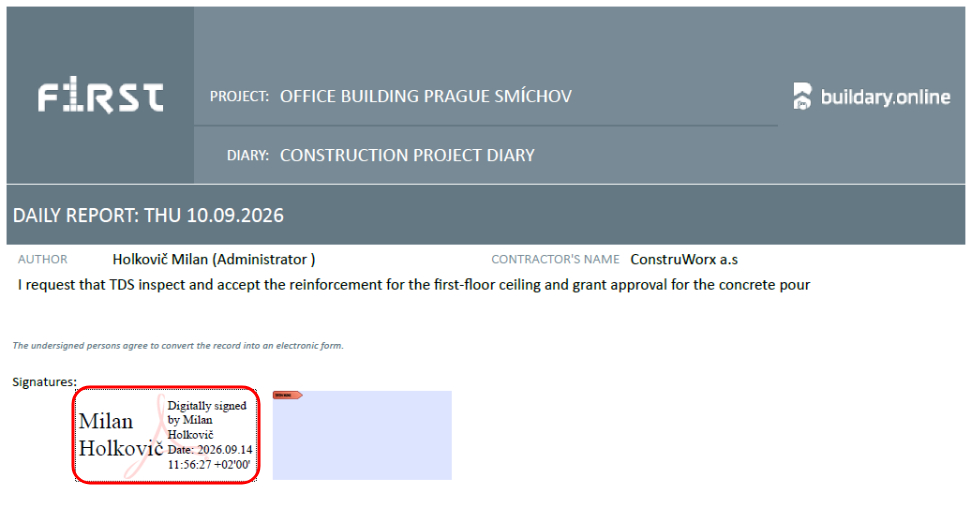
The signed file displays a visual representation of the signature. You can view details of the electronic signature by double-clicking this signature mark.
* Upload the signed file back to Buildary by selecting Upload electronically signed file via More Options, or by clicking the Upload button.
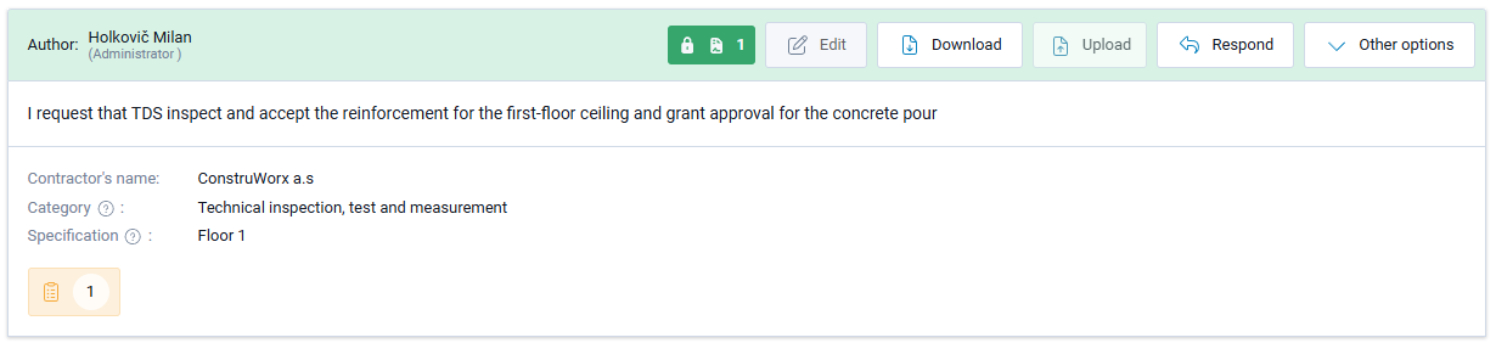
If you complete all the steps within the time limit configured for the diary, the file is saved and the record or day is permanently locked, meaning that the underline changes to green.
Other users can subsequently sign the report using the same procedure described above.