
Daily Entries - Works Performed
Video for the Works Performed Section
Works Performed
To add an entry, use the + New Entry button, which opens the editing window. Enter a description of the work being performed in the Description field and fill in any other required fields according to the diary settings. The Save and New option saves the entry and clears the form for entering a new record; the Save option saves the entry and closes the window.
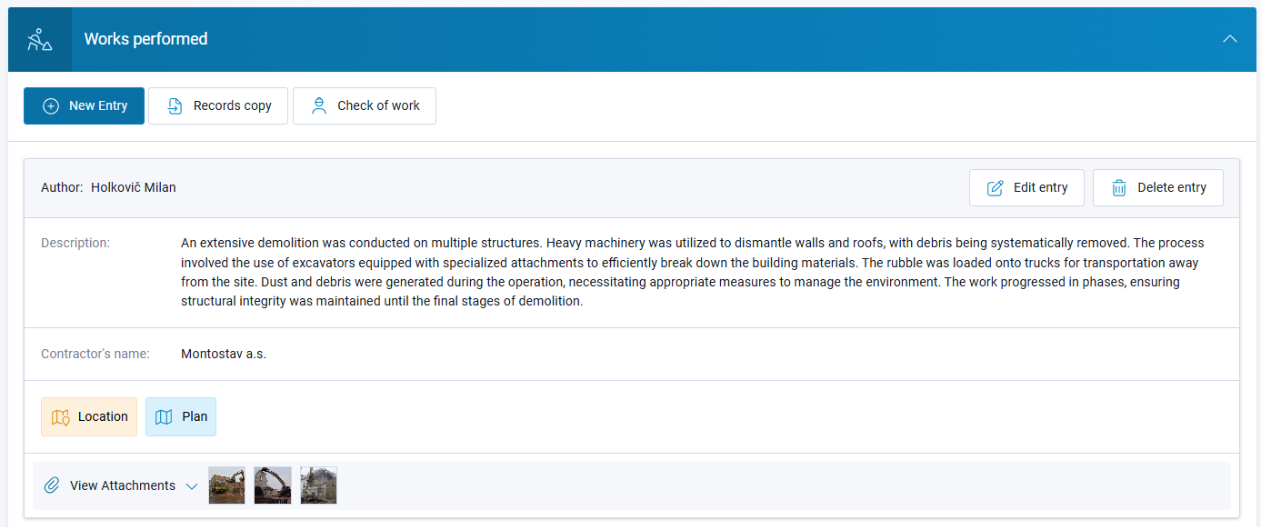
You can add attachments to entries either by dragging file(s) into the attachment field or by clicking Upload Attachment and then selecting the file from the file browser. Any file format up to 30 MB can be used as an attachment, with up to 20 attachments per entry. The application itself does not restrict the formats of uploaded attachments, but the Domain Administrator can disable any attachment type for the domain.
Be careful with compressed files such as ZIP, RAR, ARJ, etc. Most free versions of PDF editors do not allow attachments in compressed formats to be downloaded from a PDF file. Therefore, we do not recommend adding compressed files as attachments. The Domain Administrator can disable the uploading of these file types in Domain Settings.
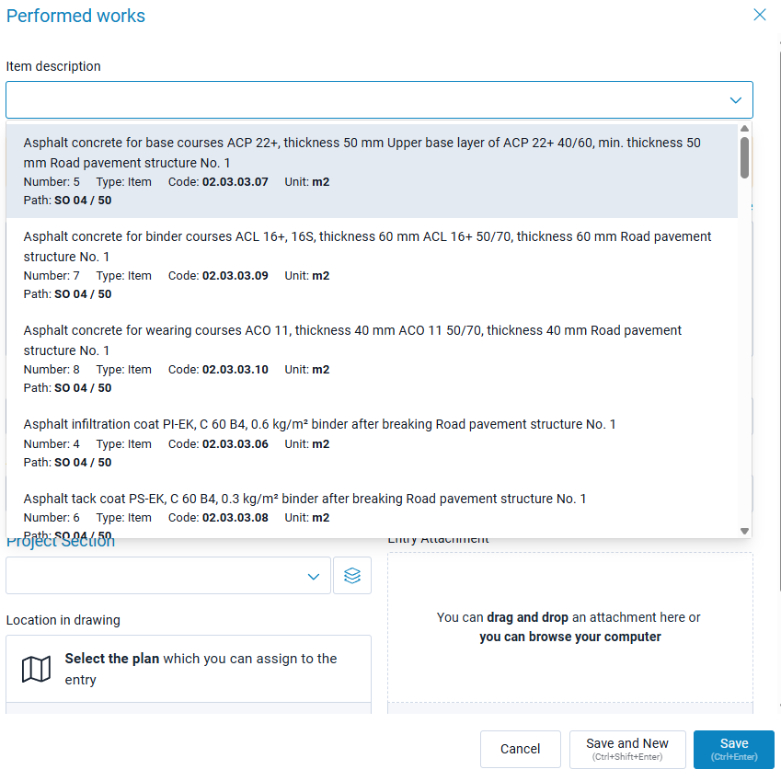
If the Performed Works module is active on the construction site and a budget has been uploaded, Works Performed can be entered using budget items. In this case, the Item Description field must be displayed in Diary Settings, on the Works Performed tab. The text of the selected item in the entry can be edited. The database retains the link to the original item, and editing the text does not break this link.
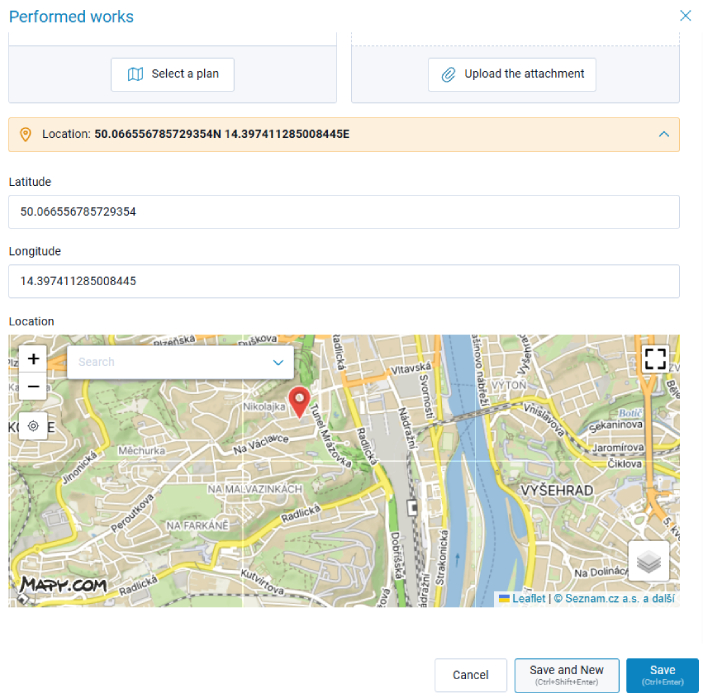
Especially for linear construction projects, the functionality for locating Works Performed on a map can be useful. To enable location data to be entered on the map for individual entries, the Location field must be displayed in Diary Settings, on the Works Performed tab.
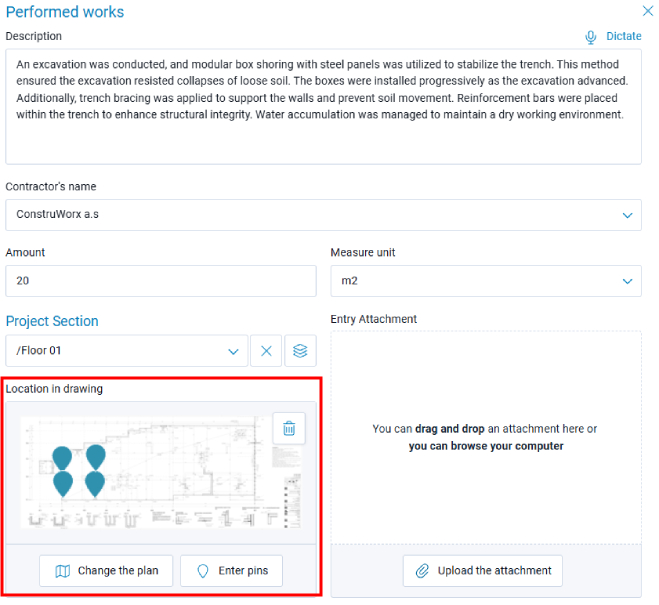
It is also possible to locate work on the construction site by placing markers directly on a plan. To use this functionality, the plan field must be displayed in Diary Settings, on the Performed Works tab, and at least one plan must be uploaded under Project Settings → Project Sections and Plans.
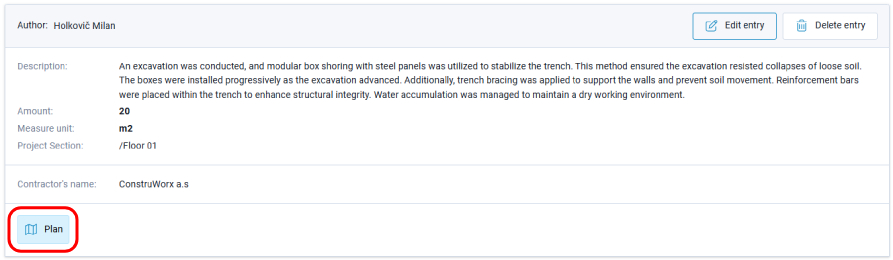
The Plan icon on an entry indicates that the work has been linked to a drawing.
Similarly, the Location icon indicates that the entry has been linked to a location on the map.
Changing the Order of Entries
The Diary Administrator has permission to change the order of entries in the Works Performed (and Other Entries) section by dragging an entry to the desired position. This option can be disabled in Diary Settings.
