
Offline Mode
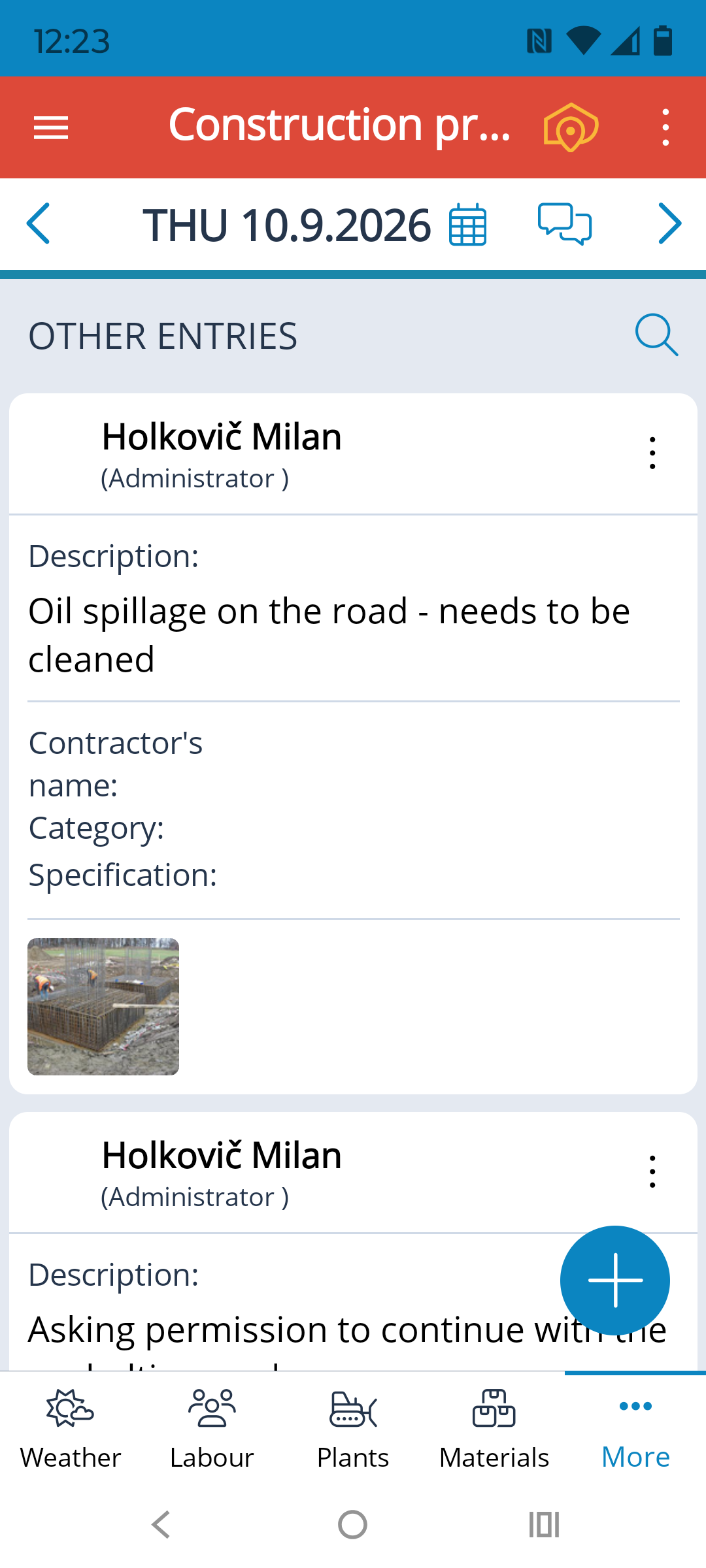
If sufficiently reliable data services are not available on a project site, or there is no data connection at all, working online becomes slower or completely impossible.
In Offline Mode, you can create new records or edit existing ones, although with certain limitations. All changes are saved on the mobile device and remain there until the data is synchronized with the server. We recommend synchronizing data as frequently as possible so that the latest data is also available to other Authorized Persons. Once a day is the recommended minimum.
Working in Offline Mode has both advantages and disadvantages. Independence from a data connection and faster operation are balanced by outdated information on the server, which can lead to conflicts between records. It is also important to keep in mind that some services and functions are not available offline, such as loading weather data, using AI (artificial intelligence) to generate records, changing the status of a day, responding to a record, signing records, etc.
Offline Mode is activated automatically when the app is launched without a data connection, or manually through the App Menu in the Control Panel. The same menu can be used to switch back to Online Mode.
Offline Mode is indicated by the app header turning red.
Records created in Offline Mode are indicated by a red marker on the right side of the record. This marker is displayed only for records that are stored on the mobile device but not yet on the server. It disappears after the data has been synchronized.
For every new project, we recommend preparing all code lists, including drawings, and performing the initial synchronization to the mobile device while a reliable internet connection is available.
Data Synchronization
In a location with a reliable data connection, you need to connect to the internet (via Wi-Fi or mobile data) and open the Buildary app. If Offline Mode was enabled directly in the app, you need to switch to Online Mode via App Menu → select “Work Online”.
Synchronization is performed by reloading:
- a page ⇒ if the change concerns, for example, only one section, navigate to that section. You can then swipe down on the screen to locally refresh the currently open page.
- a diary ⇒ selecting a diary from Diary History loads it and synchronizes all offline data recorded throughout the diary.
- a project ⇒ on the Diary History page, select “Go to Project List” and then load the selected project. If the project contains multiple diaries with offline data, this is the fastest way to synchronize all data for the entire project at once.
- multiple projects ⇒ on the same page as above, “Select Project”, press and hold to activate multi-select and select the projects. You can then use the option in the header to start a bulk synchronization.
We recommend synchronizing data as frequently as possible so that the latest data is also available to other Authorized Persons. Once a day is the recommended minimum.
The app is configured so that data stored on the server takes precedence over data entered from the mobile device during synchronization. This setting automatically filters out conflicting data, and such data will not be saved.