
This is an old revision of the document!
Table of Contents
First Steps with the Mobile App
The Buildary.online mobile app is designed for creating and viewing Daily Records in the Project Diary, as well as creating and editing tickets. It will become a valuable assistant right on the project site.
Its purpose is not to replace the full range of functionality available in the Buildary.online web application. \ \
We recommend using the mobile app only after your project and Project Diary(s) have been configured in the Buildary web application.\
THE OPERATIONS LISTED BELOW CANNOT be performed using the mobile app. They must always be performed in the web application at [www.buildary.online](http://www.buildary.online):
* creating a user account * creating and configuring a project, including drawings * adding project participants and Project Team Members, and configuring permissions * creating and configuring Project Diaries * defining rules for assigning ticket assignees and approvers
If you forget your login credentials, you also need to switch to the web interface. The login form there contains a link for resetting your forgotten password.
The app supports light and dark mode and automatically adapts to the phone's settings.
Getting the Android Mobile App
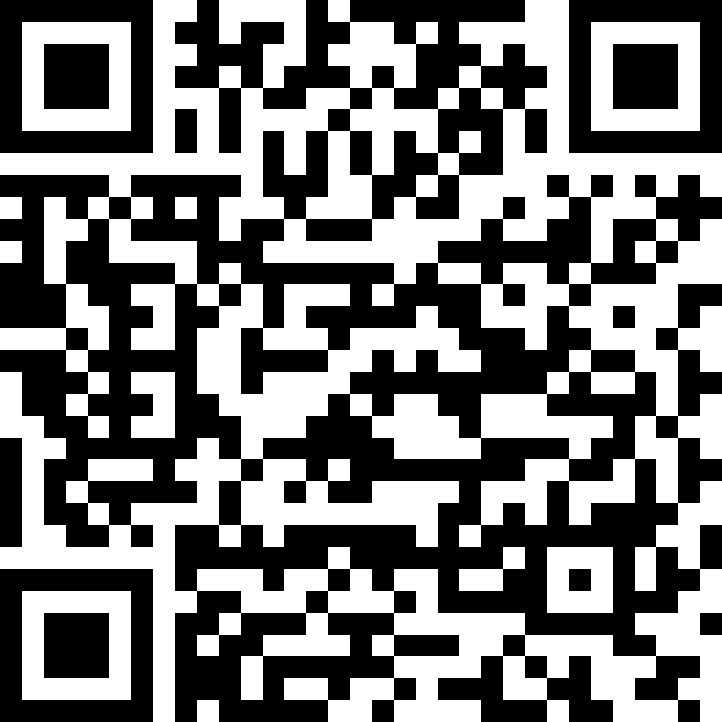
QR code for downloading the Android app\ \
The app is available free of charge from the Google Play Store under the name Buildary.Online. \ \
The mobile app is available for devices running Android 10.0 or later. If your device runs an incompatible version of Android, the app will not be displayed in the Google Play Store.
Getting the iOS Mobile App

QR code for downloading the iOS app\ \
The app is available free of charge from the App Store under the name Buildary Online. \ \
The mobile app is available for devices running iOS 15 or later.
Logging in to the App
You need to log in to the app once every 30 days. On subsequent launches, the user is logged in automatically, provided they have remained signed in and have not logged out.
1/ User Does Not Have an Account
To create and activate an account, you need to use the web interface of the Buildary application. The registration process is described in the Access to the Program chapter.
2/ User Has an Account and Logs in Using Email and Password
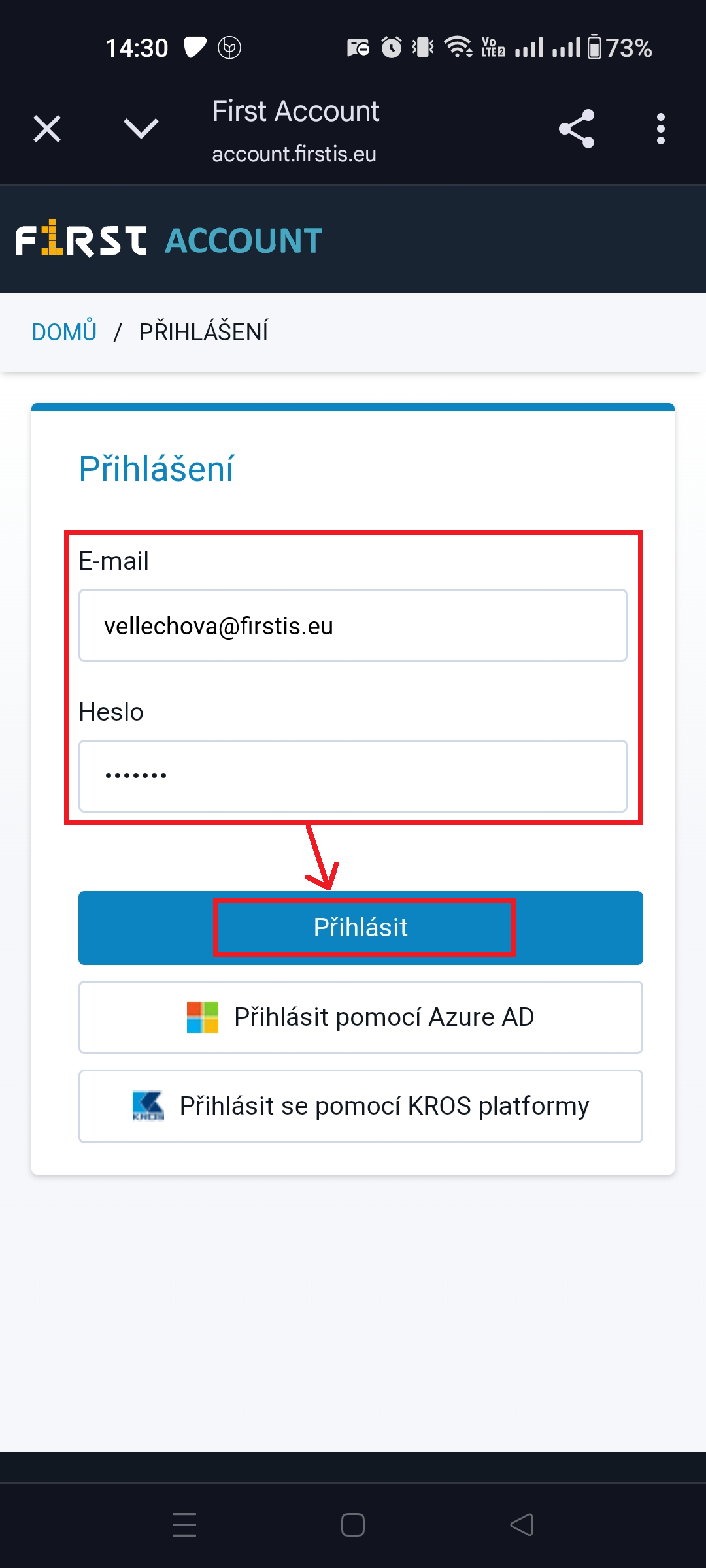
* When the app is launched for the first time, the welcome screen with the Log in to the App button is displayed. * After pressing the button, the First Account login screen opens, where the user enters their login email and password and confirms them by selecting Log in. * After successful login, a list of projects the user has access to is displayed, allowing them to select the required project. * Each subsequent time the app is launched, the page corresponding to the user's last activity is displayed, either the last viewed Project Diary or the ticket list.
If incorrect login credentials are entered 3 times consecutively, the account is temporarily locked/blocked. This lockout is time-limited, and the login credentials can be entered again after 10 minutes. If you do not remember your credentials, switch to the web interface and click Forgot password in the Buildary login form.
3/ User Has an Account and Logs in Using Azure AD
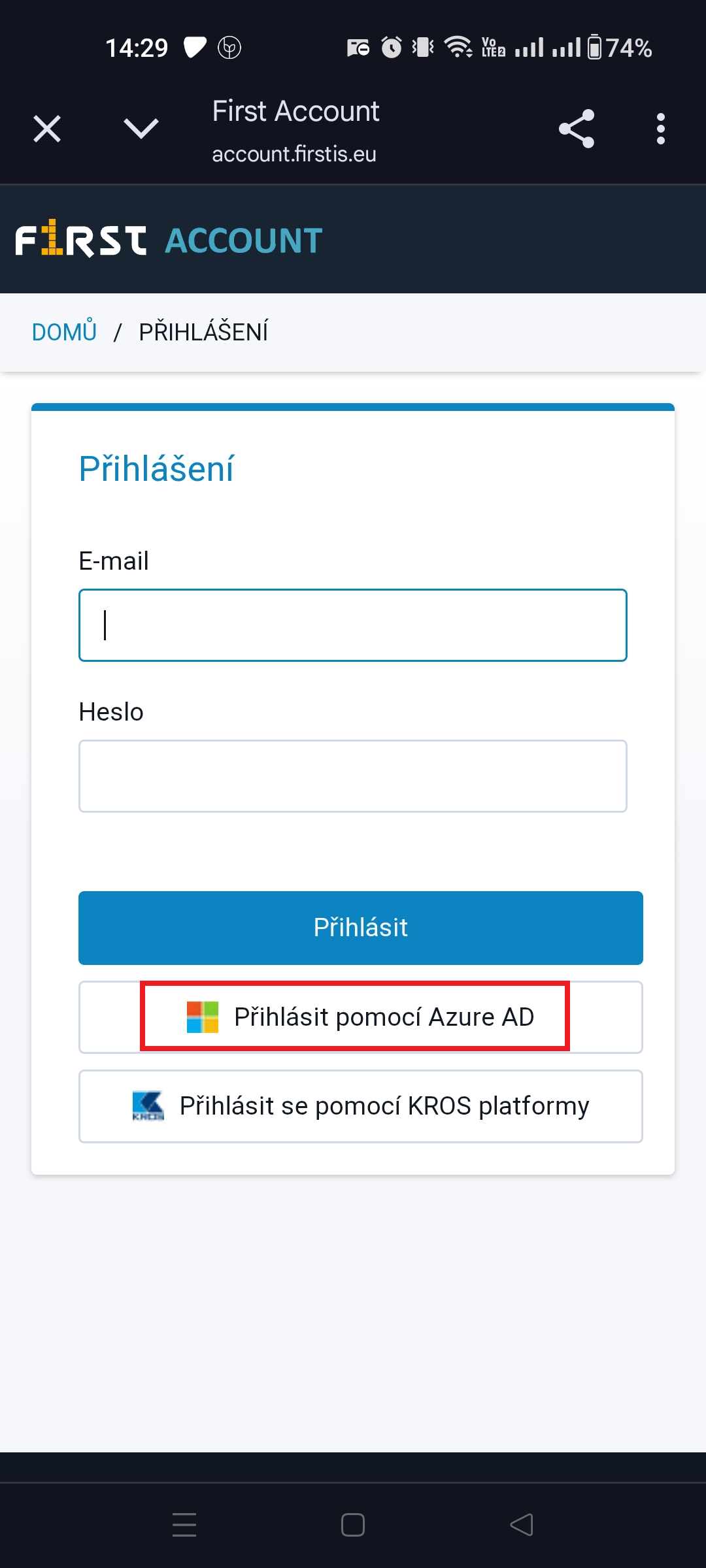
* When the app is launched for the first time, the welcome screen with the Log in to the App button is displayed. * After pressing the button, the First Account login screen opens. * No information needs to be entered. Simply select Log in with Azure AD. * The user is logged in automatically. In some cases, they may be asked to enter their Microsoft account credentials. * After successful login, a list of projects the user has access to is displayed, allowing them to select the required project. * Each subsequent time the app is launched, the page corresponding to the user's last activity is displayed, either the last viewed Project Diary or the ticket list.