
This is an old revision of the document!
How to Transfer a Certificate to a Mobile Device
If you have a certificate stored in the certificate store on your computer and want to transfer it to your mobile or another device, you first need to export the required certificate including its key from the certificate store to either your computer's storage or a shared storage location, and then transfer it to the appropriate device. \
(Each image below can be enlarged by clicking on it.)
Exporting a Certificate from the Windows Certificate Store
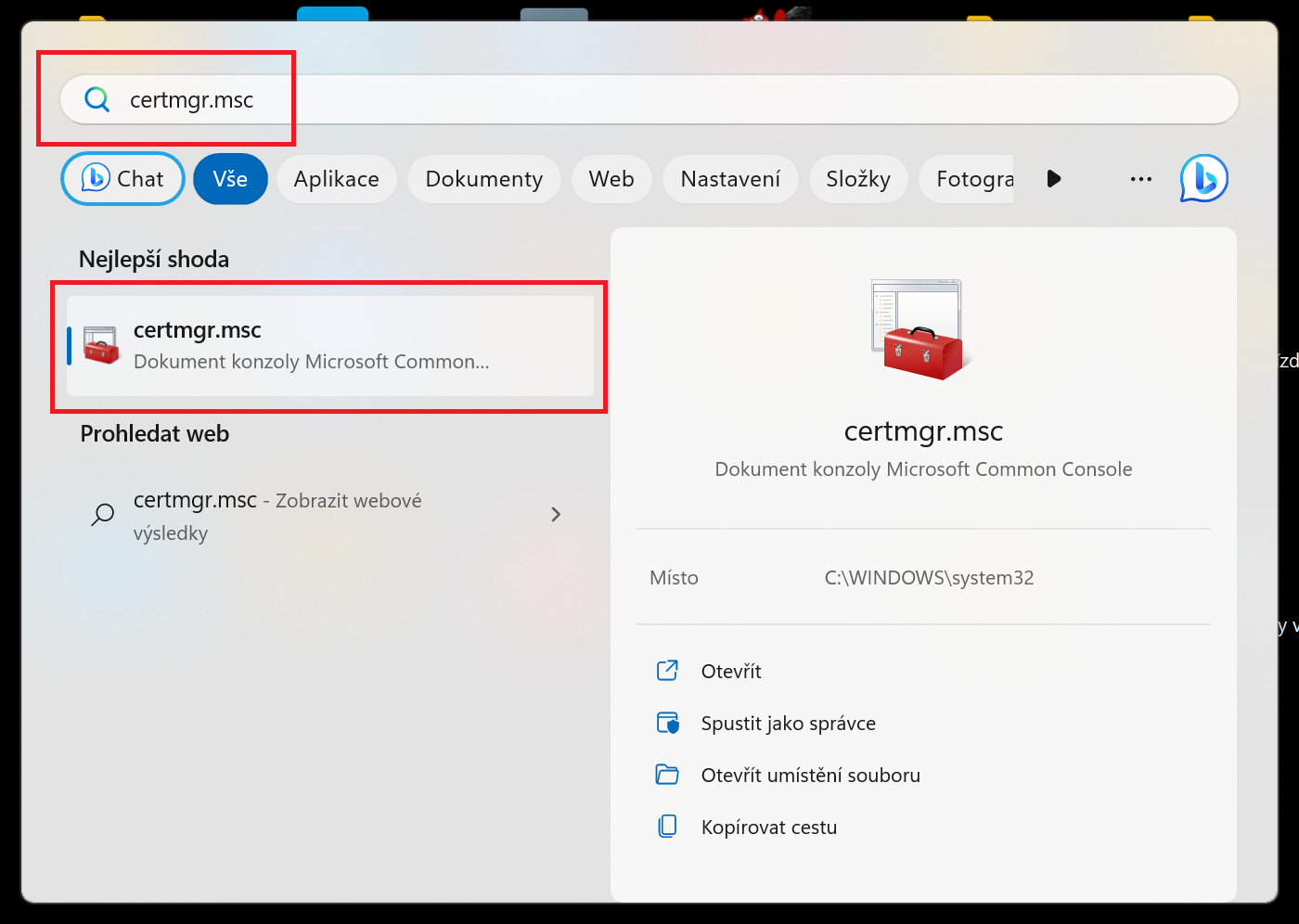
1. On your computer, enter certmgr.msc in the search field on the taskbar and open the file found.
$$\ \ \ \ \ \ \ \ \ \ \ \ \ \
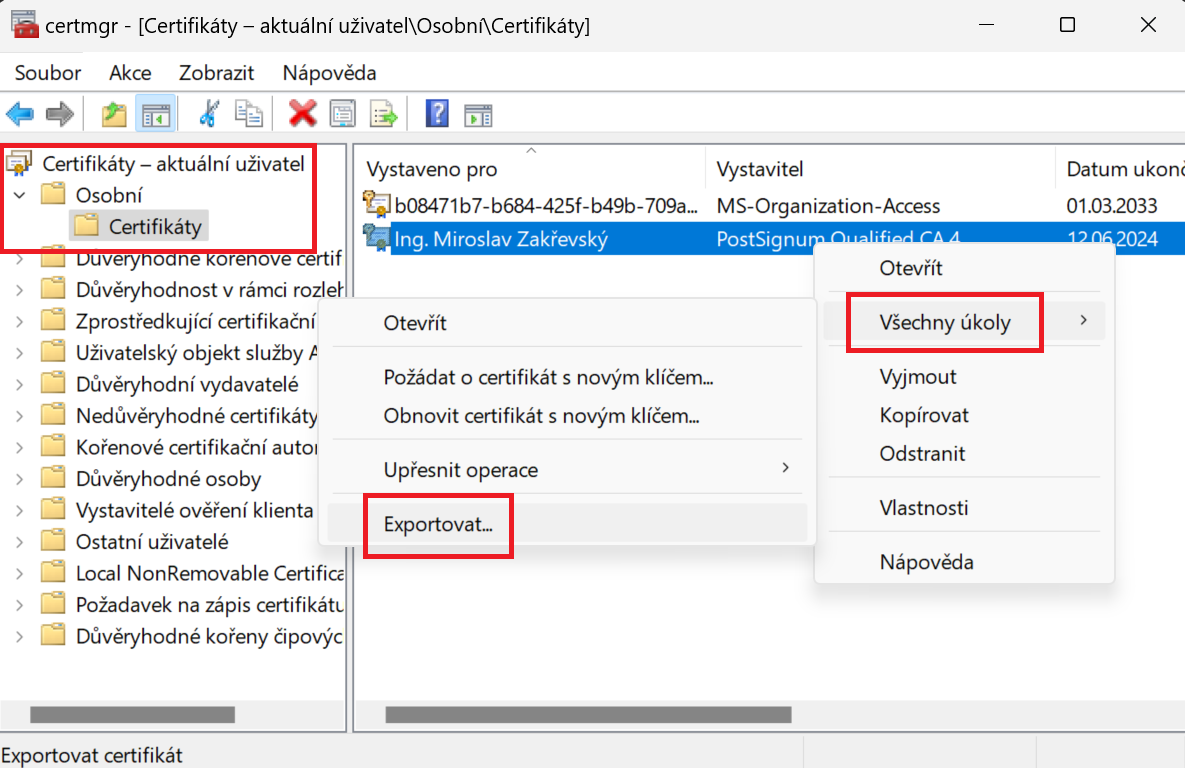
2. In the Certificate Manager window, open Personal → Certificates and select the certificate you want to export. Right-click it to open the context menu, then select All Tasks → Export.
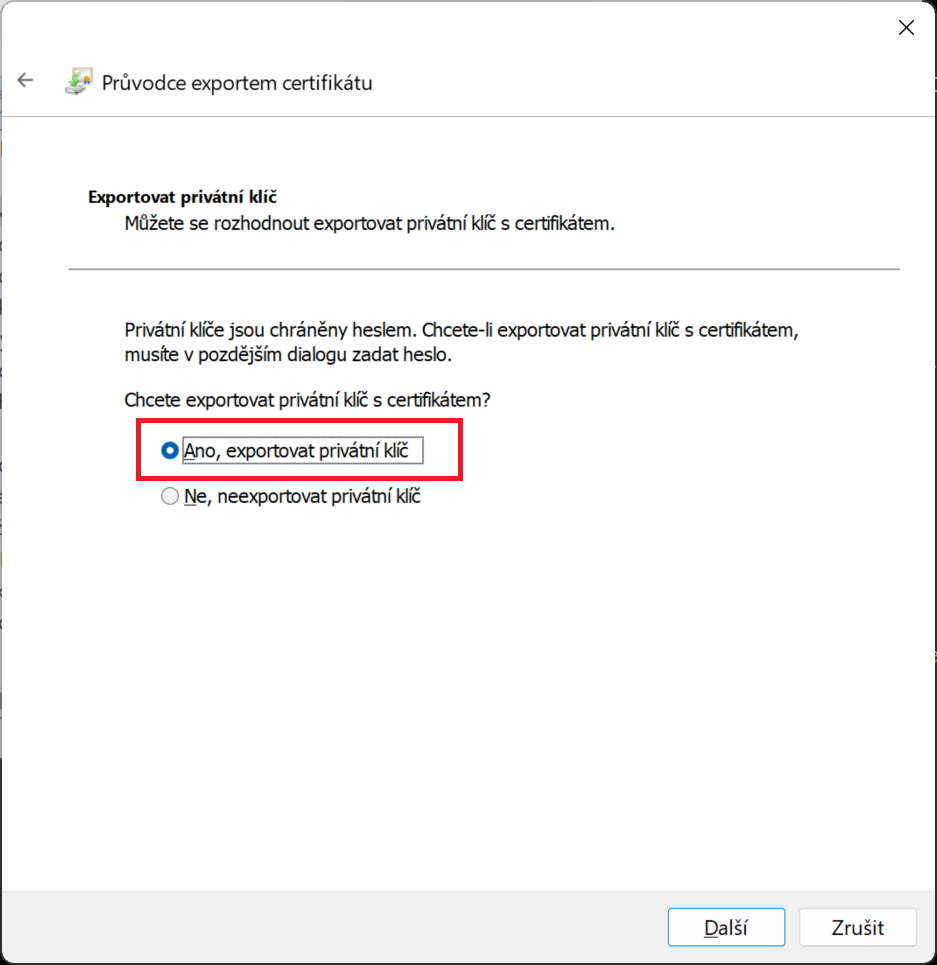
3. In the Certificate Export Wizard, select the option to export the private key as well.
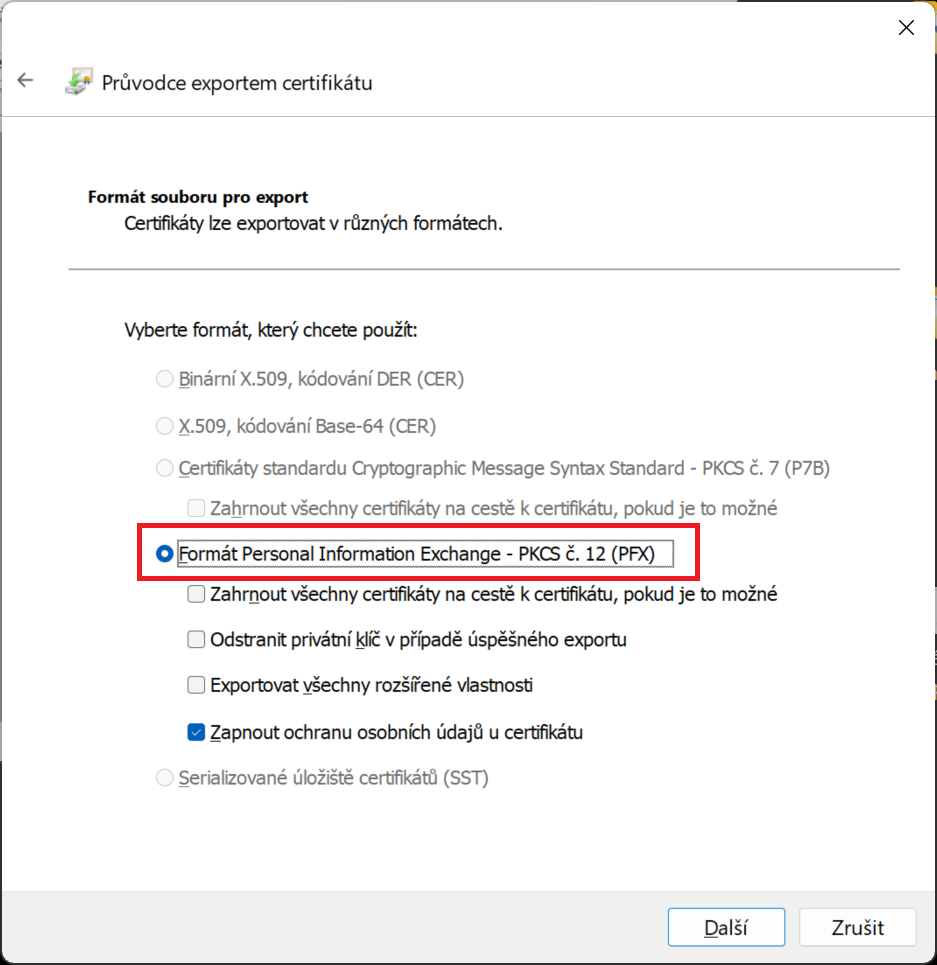
Select the Personal Information Exchange (PFX) format.
Set a password and file name. Save the file to a directory where you can easily find it.
4. Connect your mobile device to the computer using a cable and transfer the file to it, or use a shared storage location.
$$