
Ticket Kanban
For better orientation and more convenient work with tickets, users can switch from the grid to the Kanban view. Some operations are significantly easier in this view. It does not matter whether the user uses the view switcher in the top right corner of the Ticket List or clicks Ticket Kanban in the left panel. In both cases, they are taken to a page with tickets arranged in the Kanban system, while retaining the ticket filter settings from the top row.
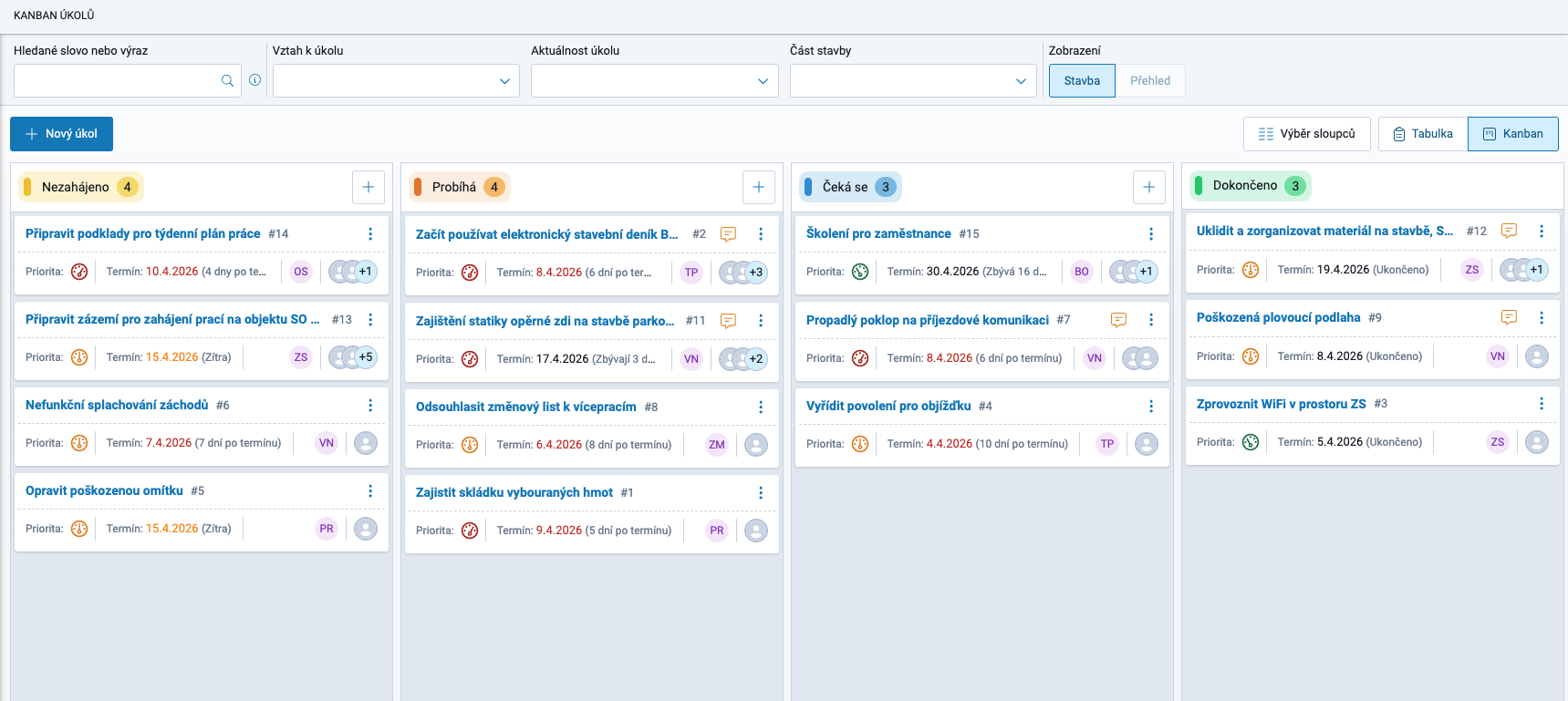
Kanban is a clear arrangement of tickets into columns according to ticket status, making it exceptionally easy to work with.
The major advantage of Kanban is working with tickets, which can be easily moved between columns, changing the ticket status without having to open the ticket for editing. Simply “grab” a ticket with the mouse and move it to the desired column (indicated by the arrow in the image below). Tickets can only be moved between columns with a logical status progression, and this action can only be performed by a user with the appropriate permission.
The image below summarizes the available options for working in Kanban:
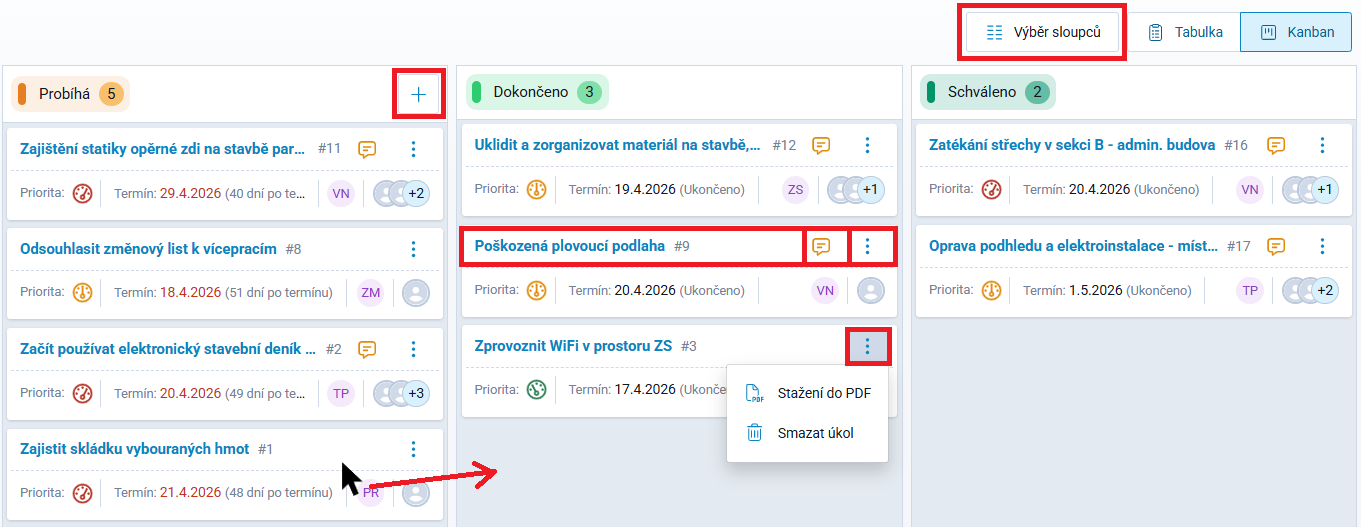
Above the columns, there is a Column Selection option. A maximum of 8 columns can be displayed: Draft / Not Started / In Progress / On Hold / Completed / Postponed / Rejected / Approved.
Next to this option, there is a switch between the grid and Kanban views.
Some column headers contain a + button, which creates a new ticket with its status automatically set according to the respective column.
The first row of each ticket contains 3 active elements:
- clicking the Ticket Subject opens Ticket Details, where the ticket can be edited, added to the discussion, etc.
- the
 icon indicates that a Statement exists for the ticket and opens the entire Statement thread with its associated records.
 - the
 icon provides the option to export the ticket to PDF or delete the ticket