
Table of Contents
Drawings and Map
The Drawings and Map page is available by clicking it in the side navigation panel or from the Dashboard.
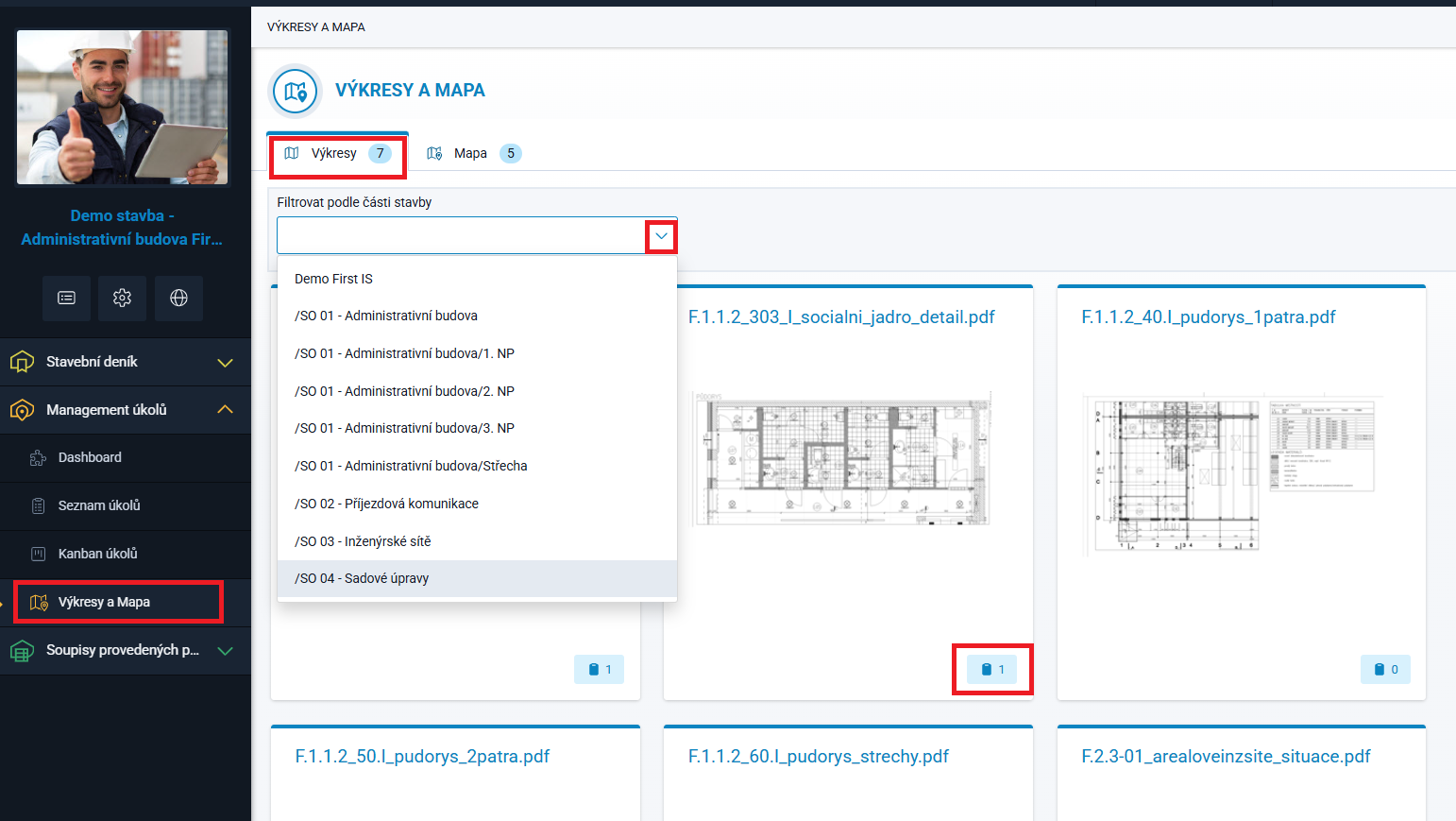
Drawings are available on a separate tab, as is the Map. The numbers next to the tab names indicate the number of tickets marked on them.
If the project is divided into parts and drawings have been uploaded for it (see the Project Parts and Drawings section), the required project part and/or drawing can be selected.
The number of recorded tickets is displayed for each drawing.
Drawings
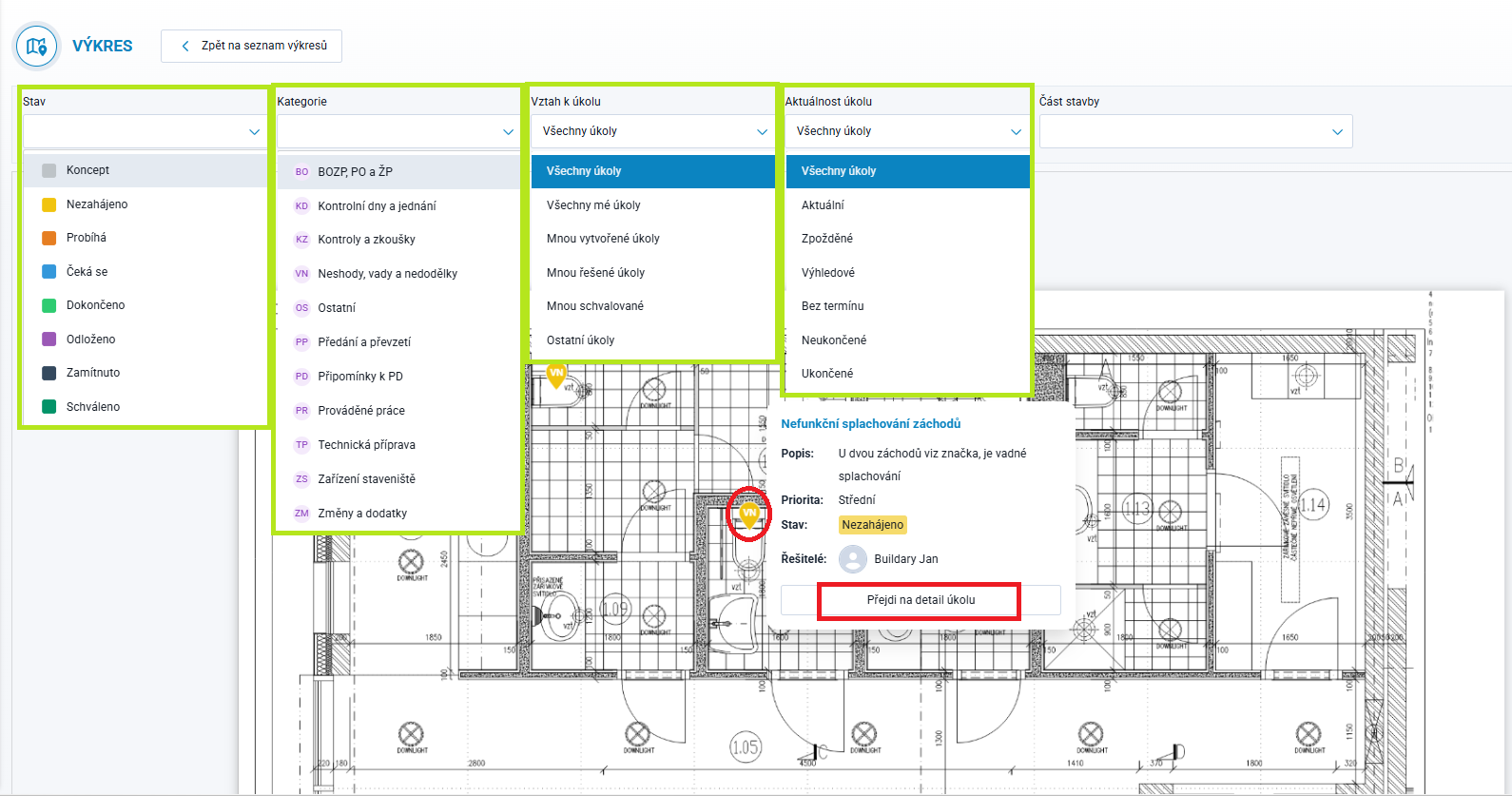
Clicking a specific drawing opens it in a new window, where you can filter tickets according to your requirements - see the image.
Hovering the mouse over a marker on the drawing displays basic information about the ticket with a link to Ticket Details for editing.
Double-clicking anywhere on the drawing opens the editing window for creating a new ticket, with a marker automatically placed at the location of the click on the respective drawing.
Map
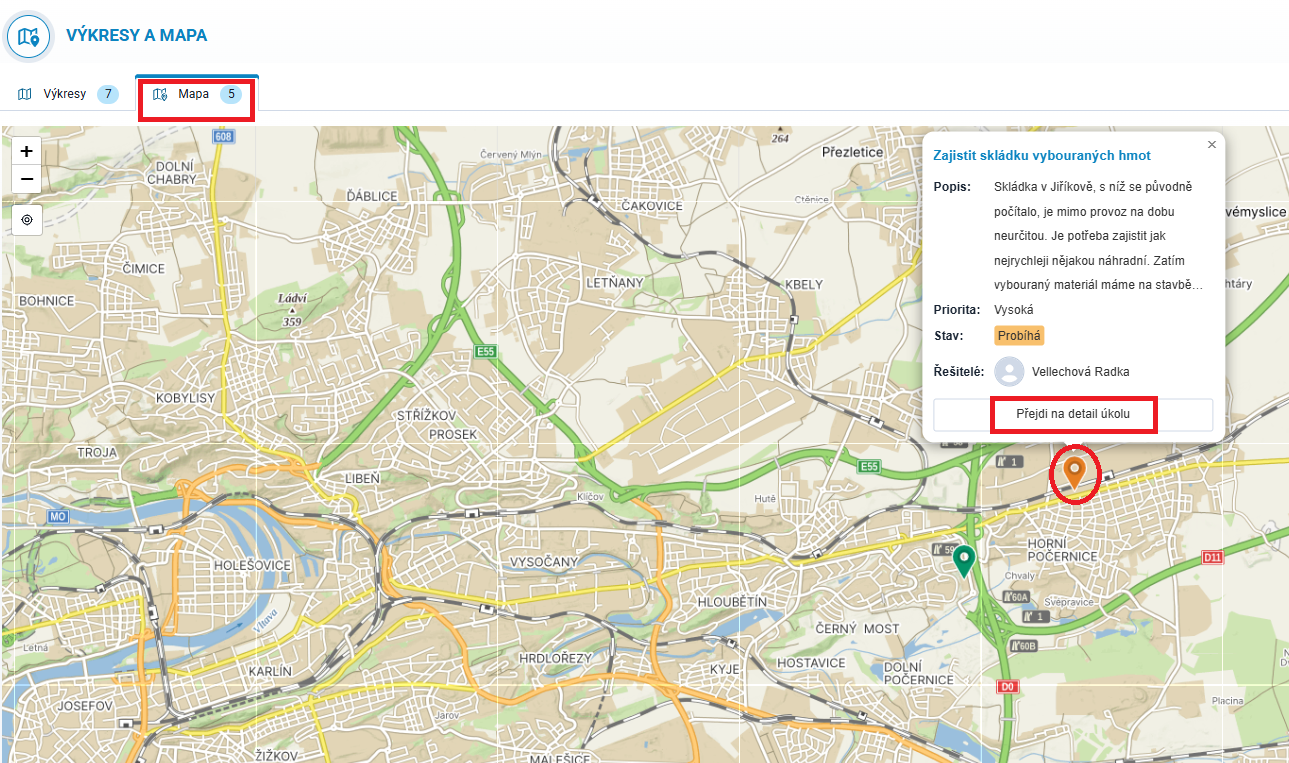
The map opens with the view adjusted so that all ticket markers are visible. Clicking a marker opens basic information about the ticket with a link to Ticket Details for editing.
Double-clicking anywhere on the map opens the editing window for creating a new ticket, with the location automatically set to the point where you clicked.
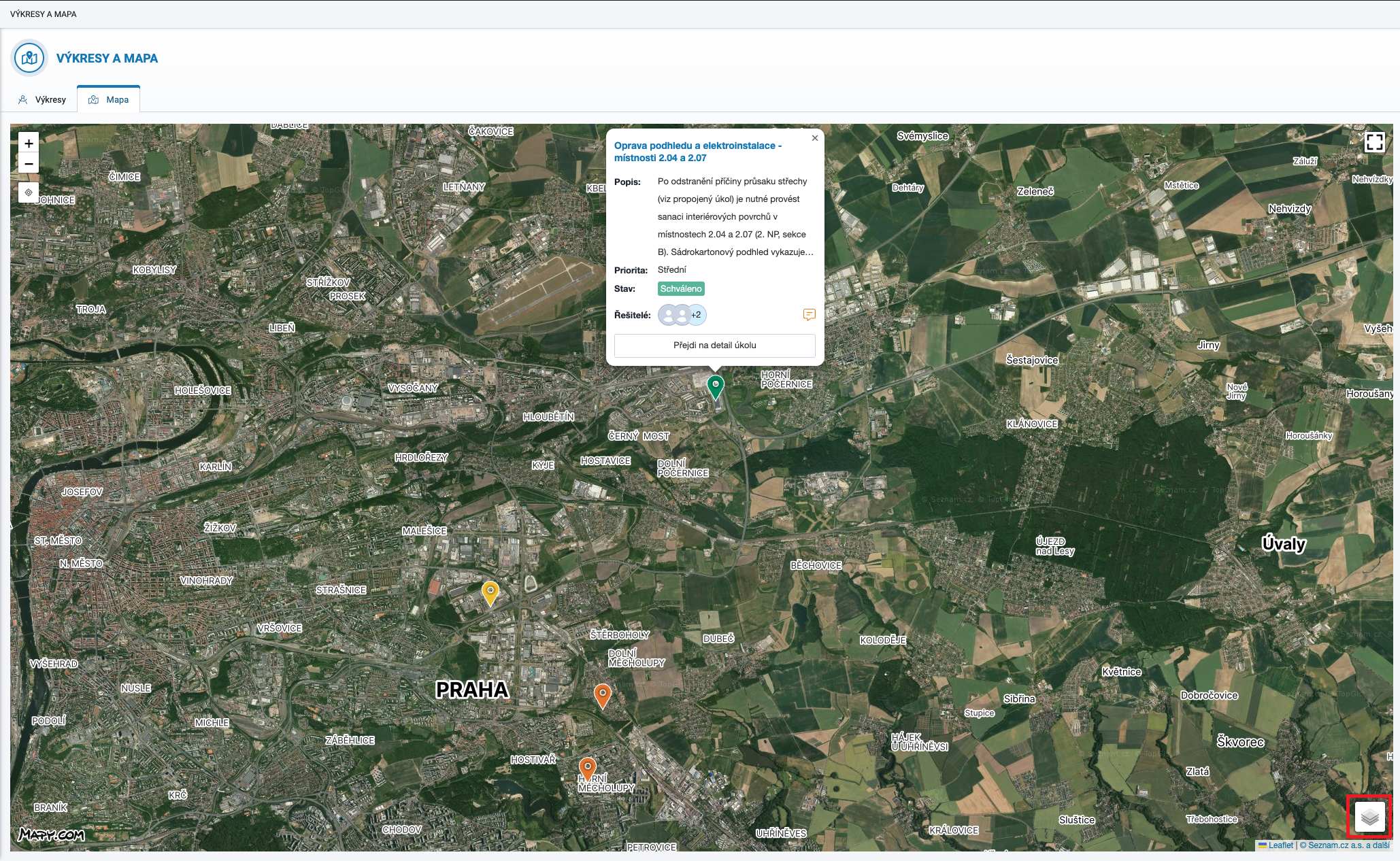
In the bottom-right corner of the map, there is a switch icon for switching between the Basic and Aerial maps.