Daily Entries
Daily Entries are the most important part of the Project Diary. Entries should be completed on the same day or on the following working day. However, the Buildary application does not force you to do so. It is entirely up to you when you enter the data and when you lock the given day. We believe that doing it later is still better than never doing it.
Daily Entries are divided into sections according to the type of entry.
Video for the Introduction
The order and content of individual sections can be customized according to the user's needs and preferences in Diary Settings.
The result of the user's work is the so-called Daily Report in PDF format, which contains all data for the given day, including attachments. By signing the Daily Report, the day is locked against any subsequent changes.
Locking is a one-time and irreversible operation.
The basic rule for entering and editing Daily Entries is that each user can edit or delete only entries they have created themselves (until the entry or day is locked).
Therefore, there is no possibility for one user to change data entered by another user, regardless of the configured permissions.
Daily Entry Header
You can access the Daily Entries window by selecting Daily Entries in the application's left panel.
The header of the Daily Entries window contains a weekly calendar, which always opens on the current day. You can switch between days by selecting a date in this row. If you need to move outside the displayed days, you can switch between individual weeks using the arrows on either side of the row, or use the calendar icon on the left below the date row.

The days in the date row are underlined in different colors. The colors indicate the status of the given day, which changes over time:
Red – the day contains no data
Blue – the day already contains some data but is not locked
Purple – the day is locked by the user and can still be unlocked
Yellow – the day is in the signing process and is temporarily locked
Green – the day is permanently locked. The number indicates the number of electronic signatures on the Daily Report for that day.
Gray – non-working day, the day contains no data and is locked
Notes for the Day

The Daily Entries window has been visually updated in the section containing the bar with the individual days. You can now add a note to each day. The note is not part of the Daily Entries of the diary and is not included in the PDF file.
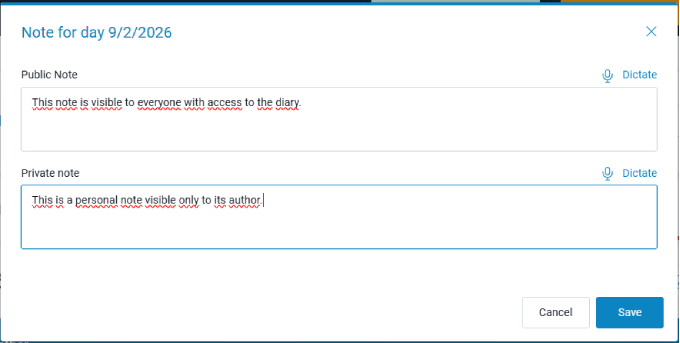
There are two types of notes: Public and Private. Notes can be added by any user with permission to edit the Project Diary. A Public note is visible to all authorized persons of the given diary, while a Private note is visible only to the user who created it.

The colored icon makes it easy to see that a note exists for a given day, both in the timeline and in the calendar when selecting a day.
Daily Entry Section
The main part of the window contains the individual sections into which Daily Entries are divided.
Work in the individual sections is described in separate sections of the help documentation.