Edit Ticket
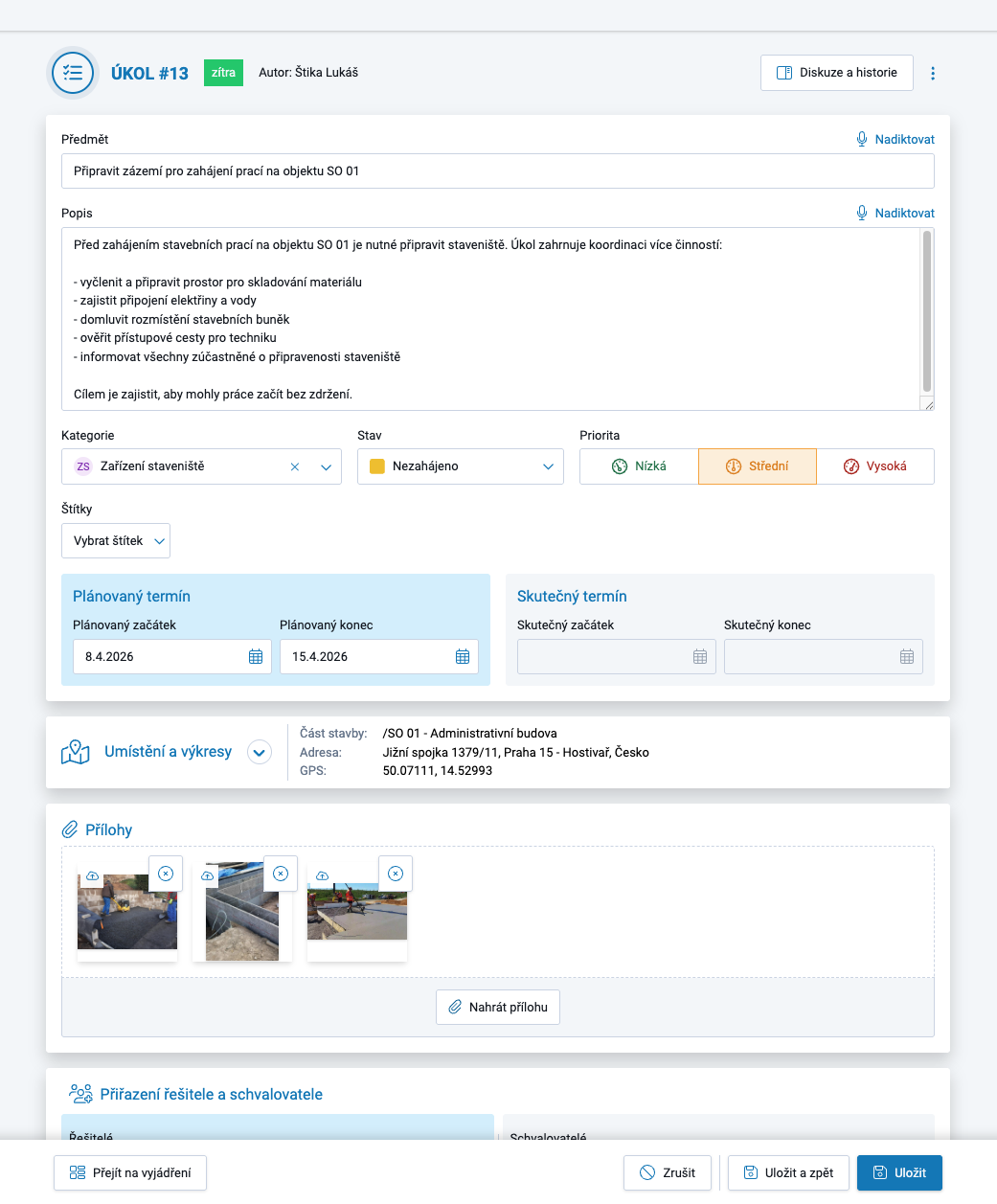
The Ticket Details (edit) page can be accessed from any part of Ticket Management by clicking the Subject of the ticket or a link (on a drawing or map).
In terms of permissions:
The Author of the ticket can edit all information.
The Assignee of the ticket can edit only the Ticket Status and Label, and add a Statement or a post to the Discussion.
The Approver can edit the same information as the Assignee, plus change the location on the map or drawing, add attachments to the ticket, and modify the people listed under Assignees and Approvers.
In terms of working with tickets, users will most often open Ticket Details to:
change the Ticket Status,
add a Statement,
participate in the Discussion, or
view complete information about the ticket.
Statement
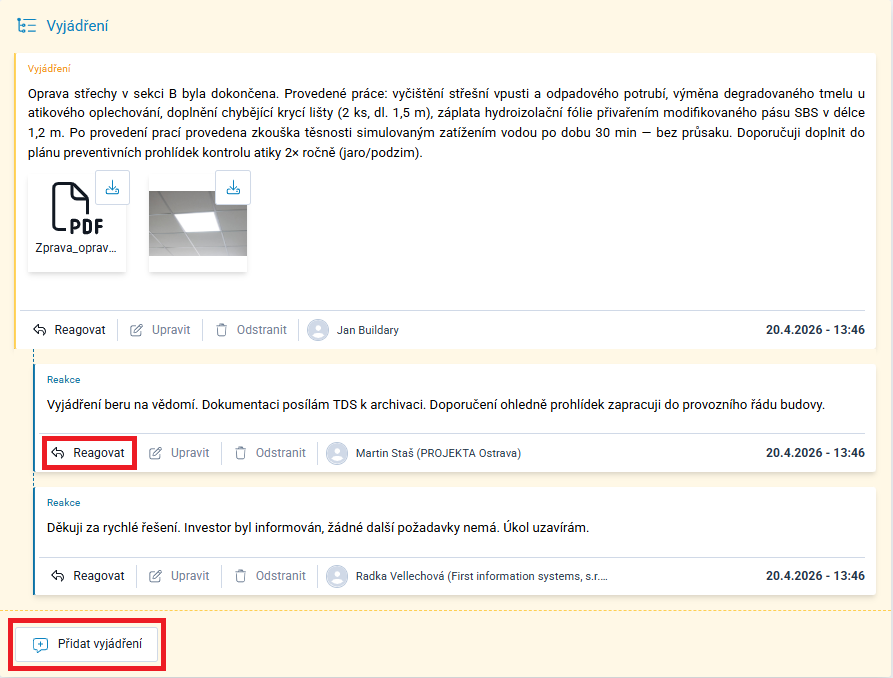
At the end of the form, there is a Statement section. Any authorized user can add information relevant to the ticket here.
The user can:
Add Statement, which creates a new thread, or
Respond, which adds a response to an existing thread.
Attachments in any format can be added to these records.
Only the author of a record can edit or delete it, and only until another user responds to it. Once a response is added, the record is locked against further changes or deletion.
If the response is removed, the record is unlocked.
Discussion and History
The Discussion and History link above the ticket form on the right opens a panel on the right side containing the discussion, with an option to switch to the history of changes made to the ticket.
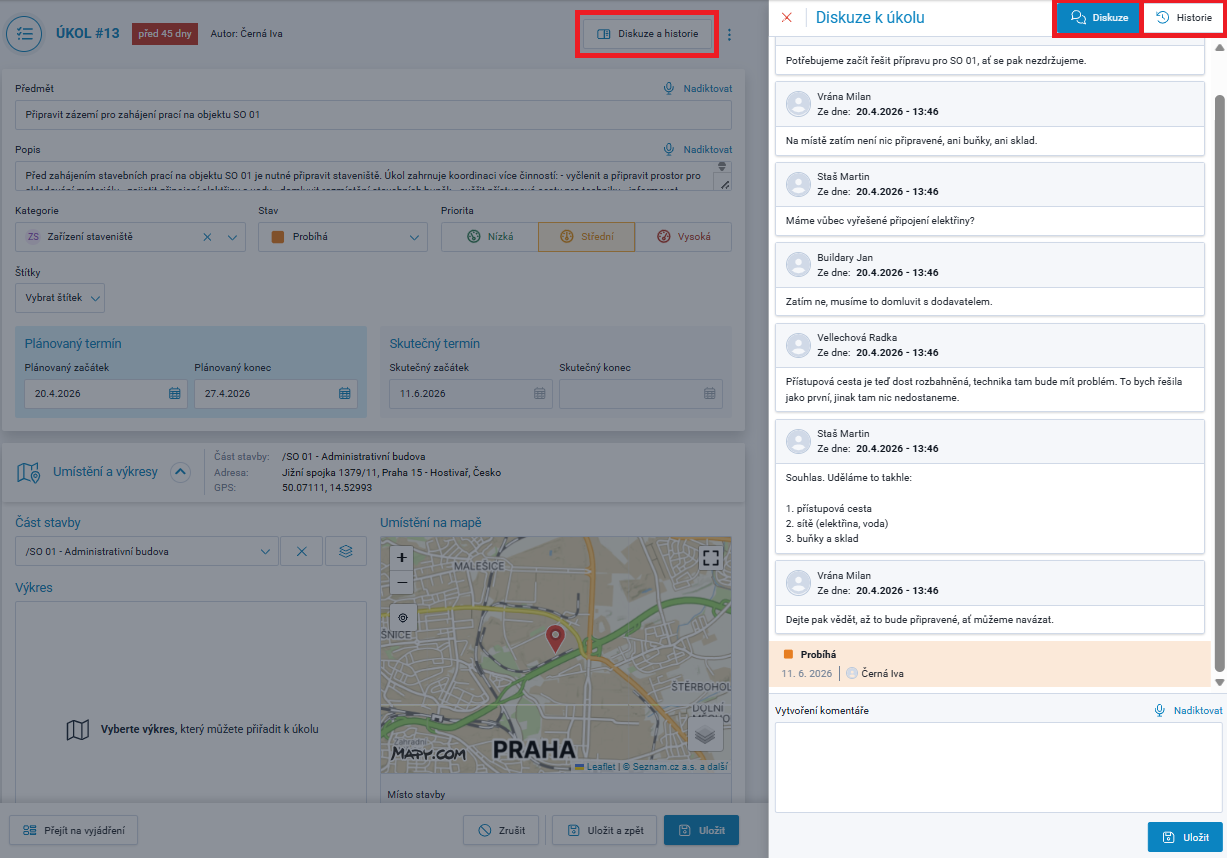
Ticket Discussion is used for informal exchange of information.
The content of the discussion is not included in any export, unlike Statements.
In the Discussion panel, changes to the Ticket Status are also displayed alongside the posts.
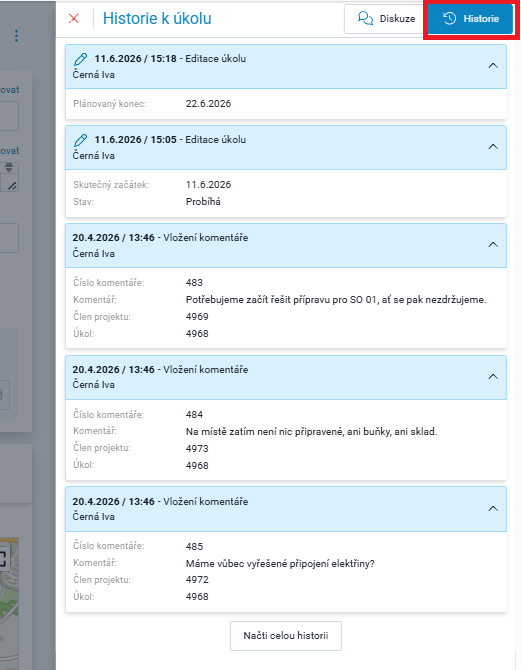
The Ticket History records all changes made to the ticket, including the author and timestamp:
Related Items
If there is a related item linked to the ticket, either an orange icon on the right or a blue icon on the left is displayed next to the Discussion and History link. Which icon is displayed depends on whether the related item is a ticket or a record in the Project Diary:
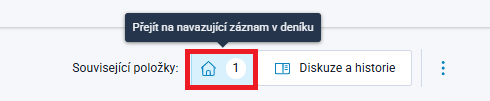
The blue icon on the left indicates that this ticket is linked to a Project Diary record. Clicking it opens the relevant Project Diary in a new browser tab, on the day containing the record.
The Project Diary record linked to the ticket is located either in the Performed Works or Additional Records section and can be identified by the icon 
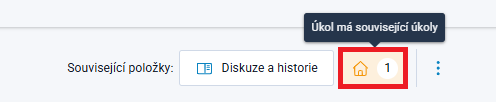
The orange icon on the right indicates that this ticket is linked to another ticket. Clicking it opens a window with a list of related tickets, from which the user can navigate to the details of a related ticket.
More Options
The Three-Dot Menu on the right above the Ticket Details form can be used to expand options for:
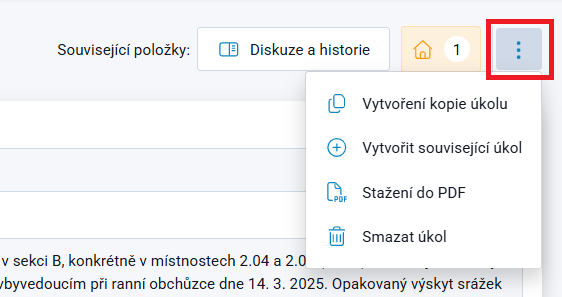
- Create a Copy of the Ticket → opens the New Ticket form and copies selected information into it
- Create Related Ticket → opens the New Ticket form with a link to the current ticket
- Download as PDF → exports the ticket to a PDF file
- Delete Ticket → deletes the ticket
If some options are inactive (grayed out), the user does not have permission to use them.