Table of Contents
Main App Menu
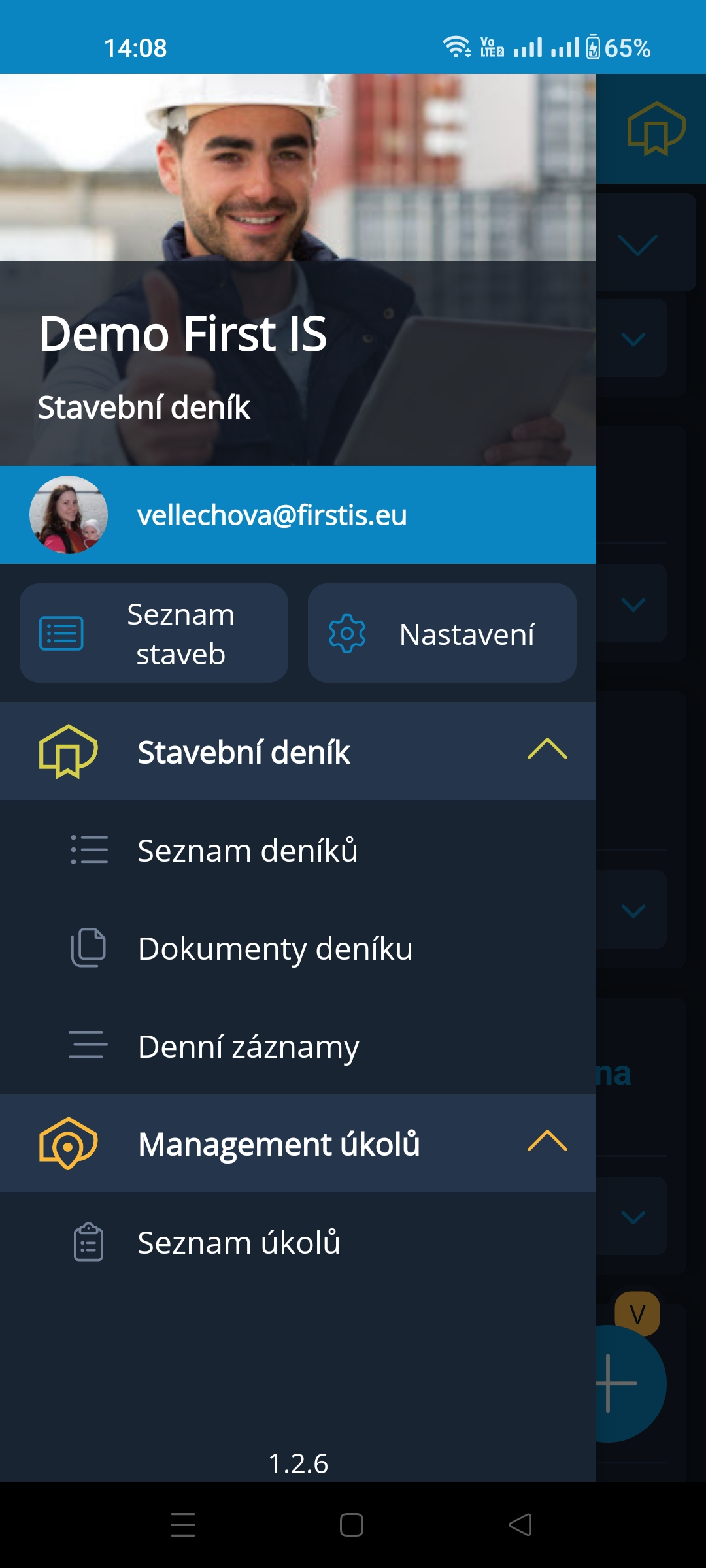
The app navigation menu is accessible from almost anywhere using the hamburger menu  in the top-left corner. If a left-pointing arrow ← is displayed here, follow it first, and the required icon will then appear.
The Main Menu is very similar to the navigation panel in the web version of the app, so navigating through it should be simple and intuitive for users.
It is only necessary to keep in mind that the functionality of the Mobile App is limited, particularly when it comes to configuration options.
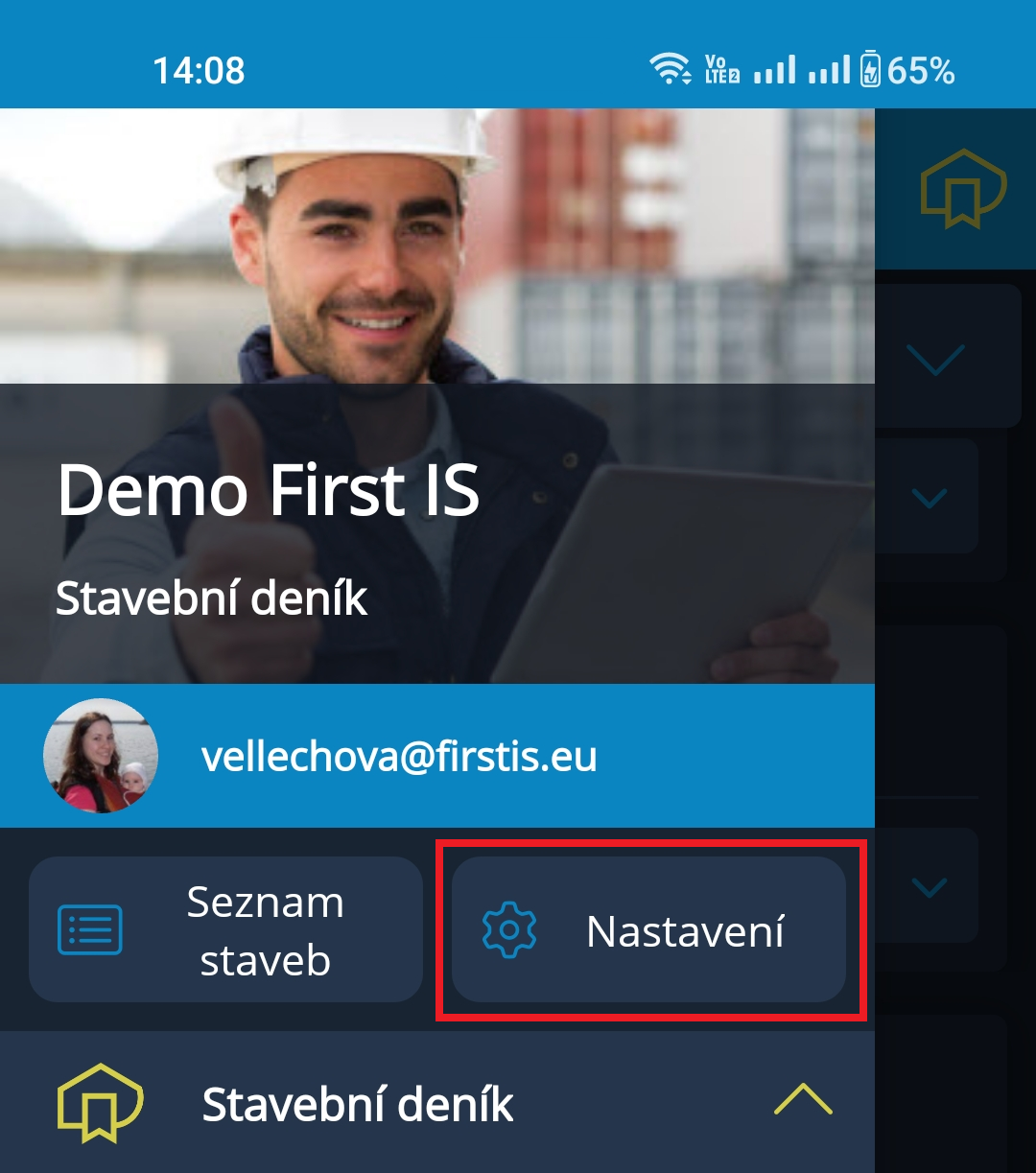
In the upper third of the menu, against the background of a project image, the short project name and the name of its last viewed diary are displayed.
Below this information is the name of the logged-in account (email address).
The active Project List and Settings icons link to the respective pages, which are described in more detail below.
The Project Diary module will not be covered in this section of the help.
In the Ticket Management module, only the Ticket List is available. This list applies only to the project shown in the menu header. If the user needs to access the ticket list of another project, they must first navigate to that project through the Project List.
For quick switching between the diary and tickets of the current project, use the icons in the header of the diary or tickets:
Project List
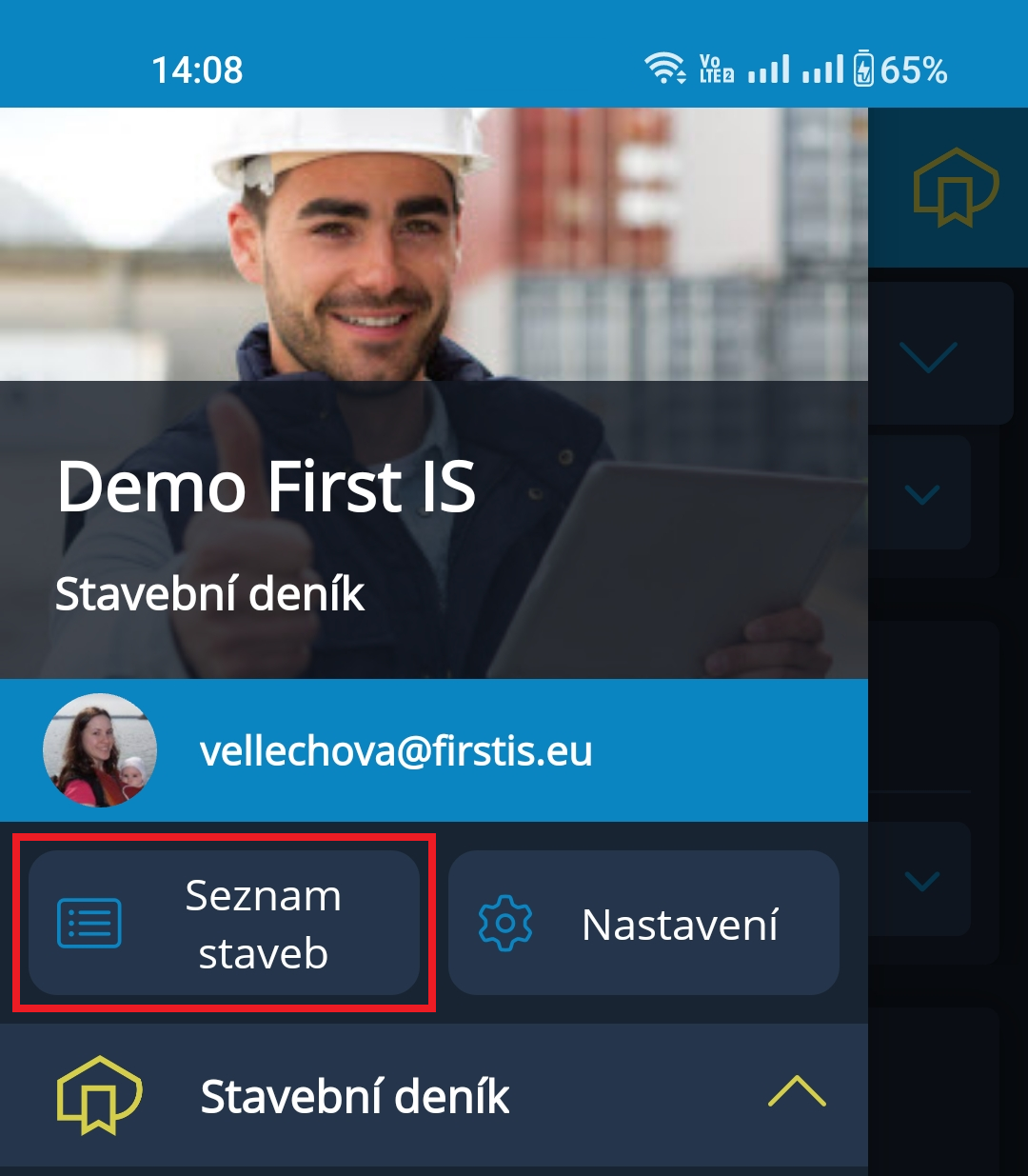
The Project List is undoubtedly the primary icon in the navigation menu, allowing users to move freely from one project to another.
Its placement in the Main Menu provides quick access.
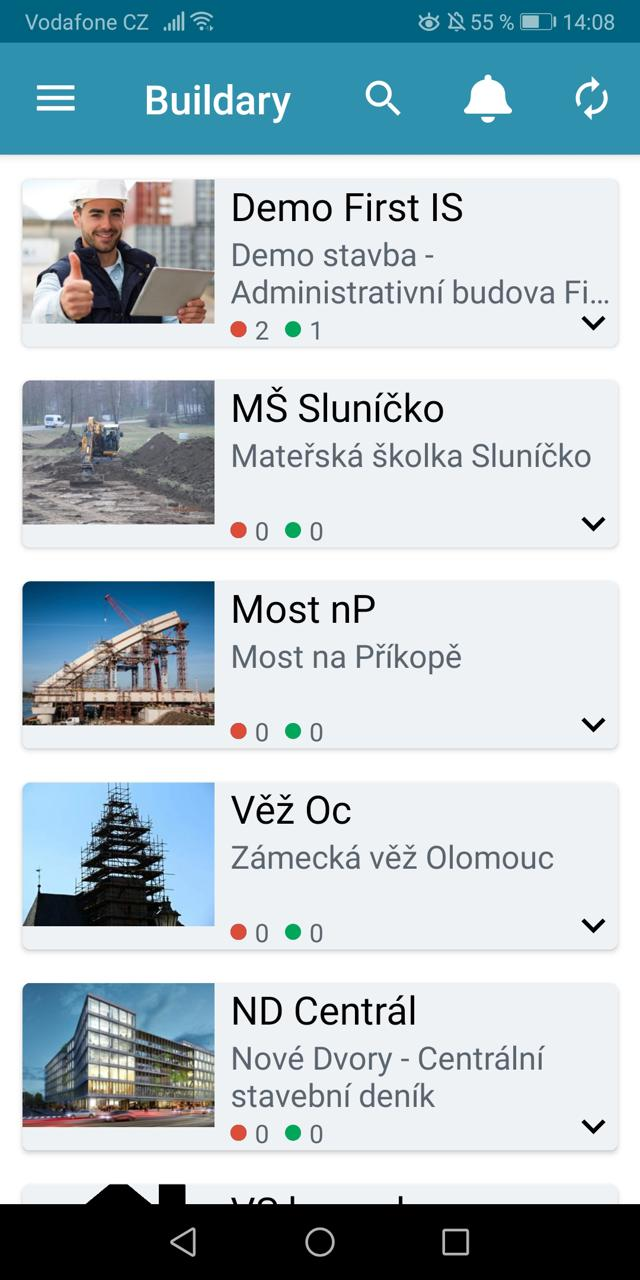
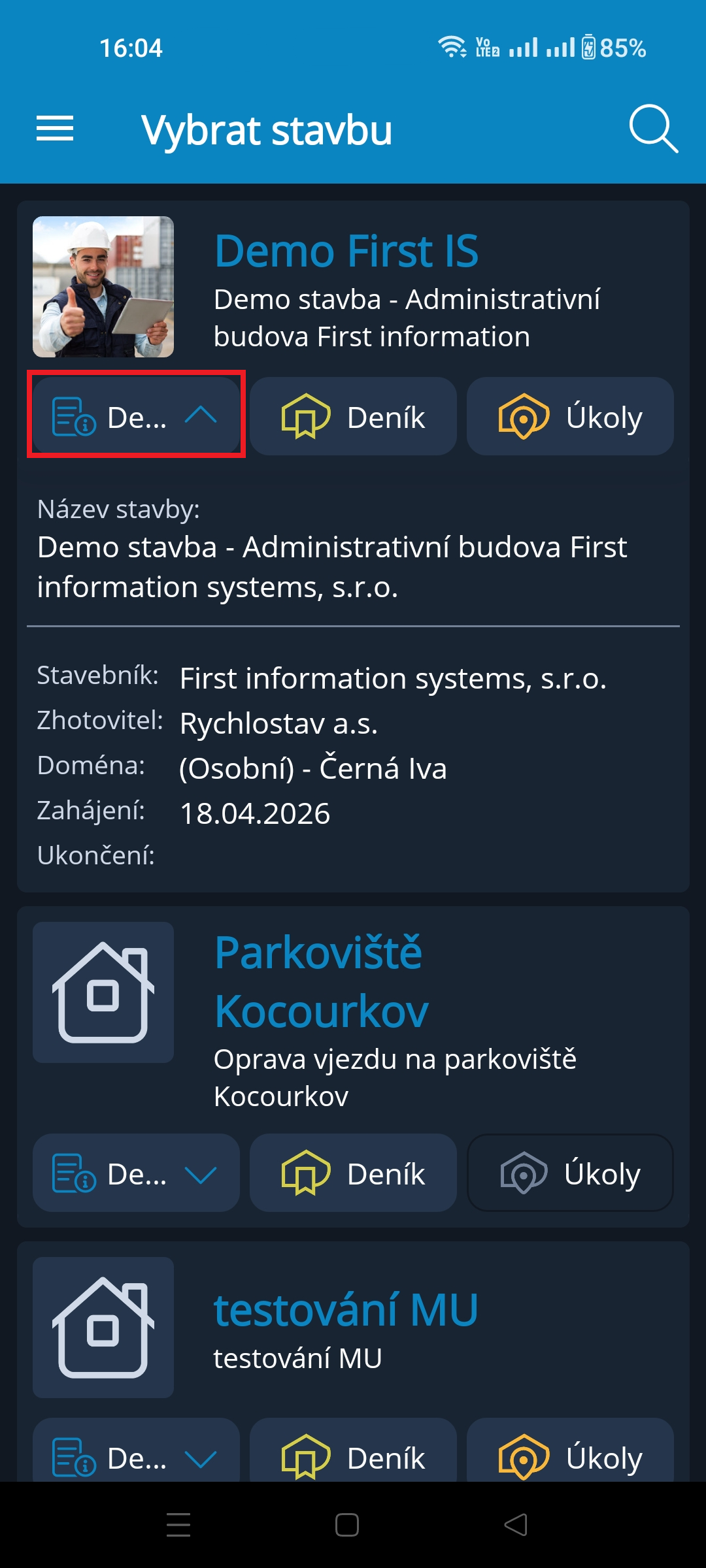
The list displays all projects the user has access to.
The Details icon expands to show basic information about the project.
The Diary icon takes the user to the Project Diary of the project, or to the Diary List if the project has multiple diaries.
The Tickets icon takes the user to the Ticket List of the selected project.
A module that is not activated for a project has an inactive (grayed-out) icon in the list.
The entire card containing the project image and name above the icons is also active ⇒ a project with one diary opens the diary's Daily Records for the current day / a project with multiple diaries opens the Diary List. If only Ticket Management is activated for the project and the Project Diary is not, the Ticket List page is opened.
Settings
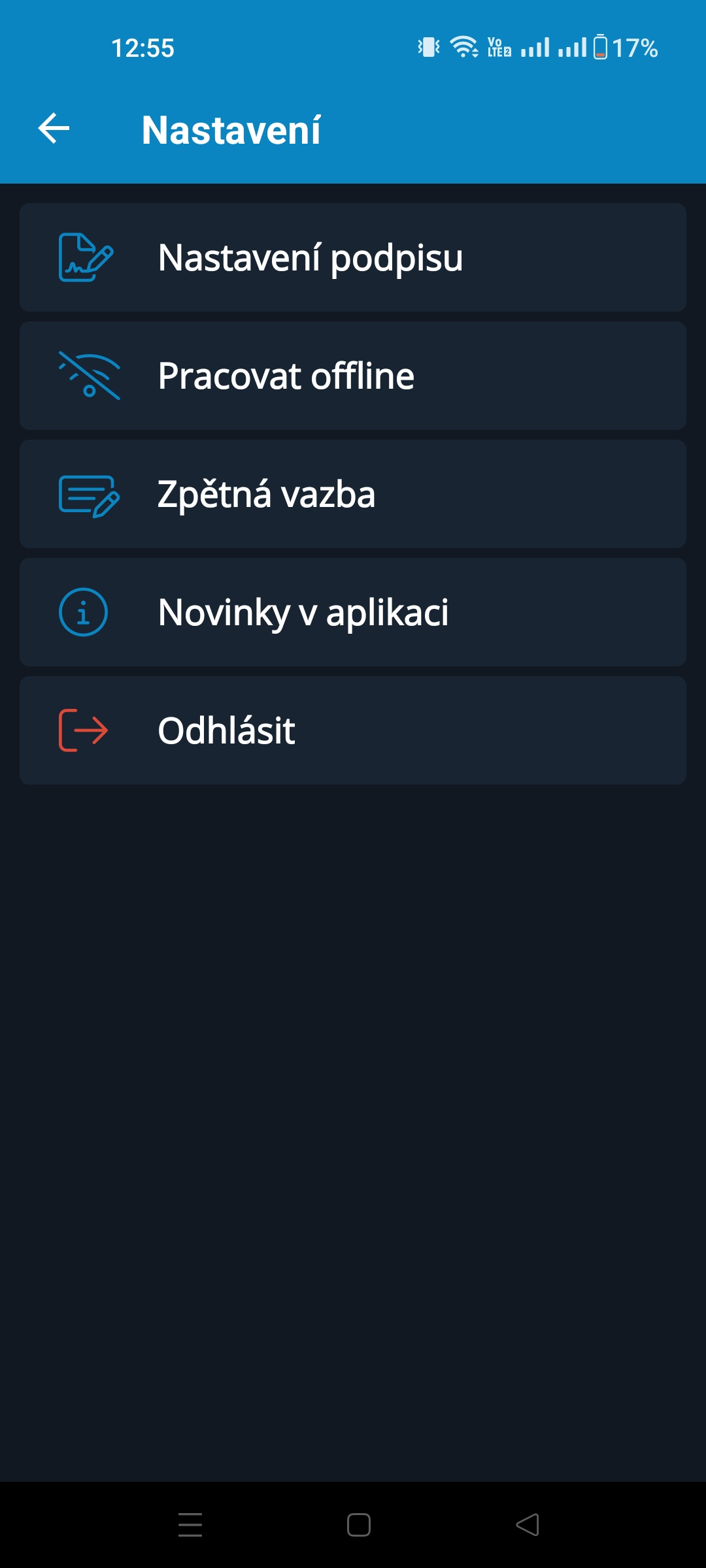
The Settings icon opens a page with a few configuration options:
- Signature Settings → this is not relevant to the Ticket Management module. Signatures need to be configured for working with the Project Diary, so this functionality is described in the help section for the Project Diary module.
- Work Offline → users can switch to offline mode if they do not want to use mobile data. An internet connection is required to synchronize local data with the server, and users must manually switch back to online mode here.
- Feedback → do you have any comments about the app? Do you have an idea for how to improve it? You can submit your comments using the form available through this link.
- What's New → this opens the window that was displayed when you first entered the app but that you did not have time to read. If we have important information about new features or changes in the app, it will be shown when you log in, but you can also find it here at any time.
- Log Out → if you need to sign in with a different account, or simply want to log out before closing the app, you can do so here.