Domain
The concept of Domain was introduced in Buildary to allow projects belonging to the same customer to be managed under one umbrella and to create shared settings for these projects. Domains are primarily relevant for corporate customers. Most Buildary users will either not encounter the concept of a domain at all or will only encounter it occasionally. Every user who accesses Buildary for the first time is given a personal domain. Within this domain, they have full permissions and their work is not restricted in any way. For companies, we strongly recommend creating a corporate domain. Any user can create a domain and thereby become its owner. This gives them certain rights described in a separate chapter.
Creating and Configuring a Domain

When should you create a domain? Create a domain if you want to work in Buildary as a company that has its own projects and its own users.
If you only work on projects that someone has invited you to, or if you have an individual project (for example, your own family home), your personal domain is sufficient and you do not need to create a corporate domain.
A domain is created using the Domain Settings option in the left panel  .
.

Your personal domain will always be displayed in the first row of the window.
We recommend keeping your personal domain for testing and creating a separate domain for your company.
A new domain is created using the  button.
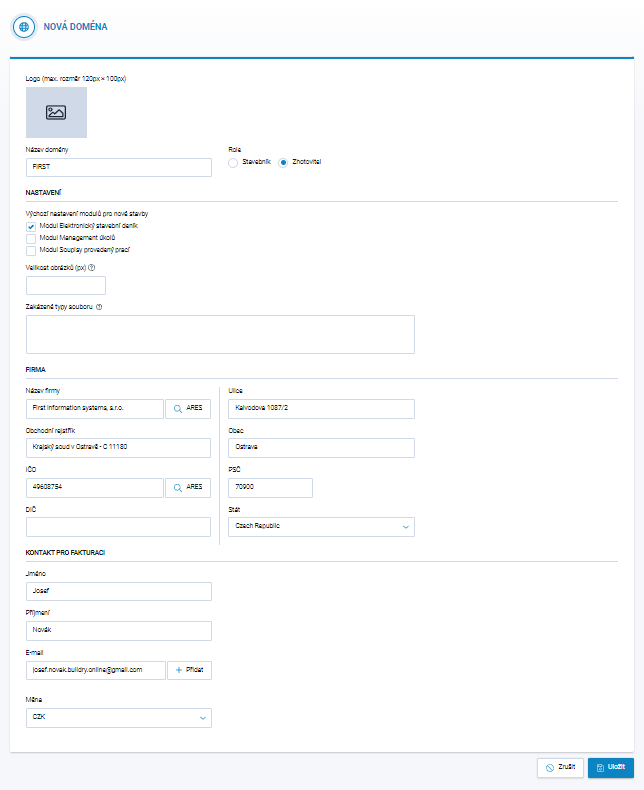
In the New Domain window, you can enter the domain name, the company's identification details, and specify whether the company is generally a client or a contractor. This is only default information and can be adjusted individually for each project.
When a new Domain is created, the First company logo is used by default. You can delete this logo or replace it with your company's logo. Since the logo will be displayed on a dark background, we recommend using a white or very light-colored logo. The logo configured in the Domain will be used as the Logo on the left in every newly created Project Diary and will be displayed in the application and in PDF reports.
Domain Users

Use the  button to add a new Domain User.
To edit a user, click the edit icon
button to add a new Domain User.
To edit a user, click the edit icon  .
You can assign the appropriate permissions to users in the domain.
.
You can assign the appropriate permissions to users in the domain.
The Domain Details window contains the following tabs:
- Domain Management - you can edit the domain details or update the company's identification details.
- Domain Users - you can add and edit users here. Only add users from your own company to the domain. Users from external companies should be invited to specific projects and therefore should not be part of your domain.
- User Reports - you can export XLS reports showing users by project, the number of licenses in use, or a list of projects. You can also replace one user with another on this tab.
- Domain Billing - this section contains all automatically generated documents issued by us for application operation and archiving, including Payment Requests and Tax Documents.