Obsah
Access to the Application
First Launch
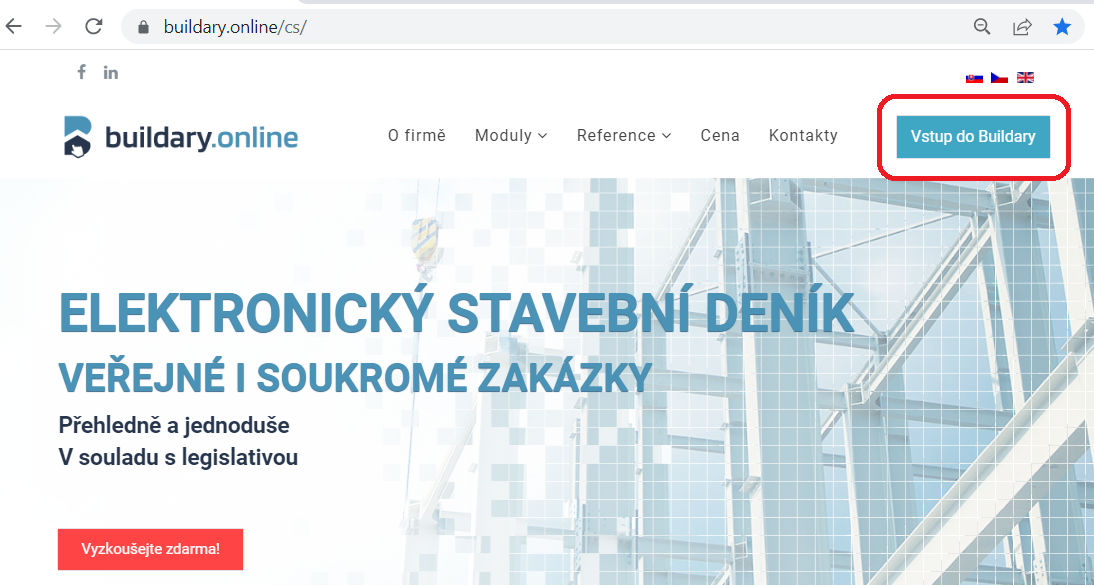
We recommend launching Buildary from the www.buildary.online website, where the latest information related to the application and its practical use is also published.
To sign in to your account, click the blue Sign In button in the upper-right corner.
If you do not have an account yet, you must create one first. You can register a new account from this website by clicking the yellow-orange 30-DAY FREE DEMO button.
Creating an Account Using an Email Address and Activation Code

If you do not have an account yet, you can create one by selecting Create a New Account in the login window, or by clicking the yellow-orange 30-DAY FREE DEMO button on the home page (see above).
 After creating a new account, a message containing an activation code will be sent to your email address.
After activation, you can use the account to work in all modules of the Buildary application.
You do not need to sign in every time you launch Buildary. If you select the „Remember me“ option, the application will not ask you to sign in again. However, this only applies while the so-called token, which is a temporary access code, remains valid. Once the token expires, you must sign in again. The token is valid for 1 month.
Forgotten Password

If you forget your password, click Forgot Password in the login window. The link will redirect you to the password recovery form, where you enter your email address and confirm by clicking Send. Then follow the instructions sent to your email address.
Accessing the Application via Azure AD

You can access Buildary via Azure AD. In this case, you do not need to enter your email address and password in the login form. Simply select Sign in with Azure AD and then sign in to your Microsoft account. To access Buildary, you must grant the Buildary application access to your Azure AD account data (name and email address). Without this permission, your account cannot be linked and you cannot work in Buildary.
If the user does not yet have a Buildary account, one will be created automatically.
IMPORTANT! The first time you sign in to Buildary using an Azure AD account, the option to access the application using an email address and password is deactivated. This means that once a user accesses Buildary via Azure AD, they must use this method exclusively (this also applies to the mobile application). It does not matter whether the account was originally activated through the Buildary registration form or through Azure AD. Signing in by entering an email address and password will no longer be available.
First Access to the Application
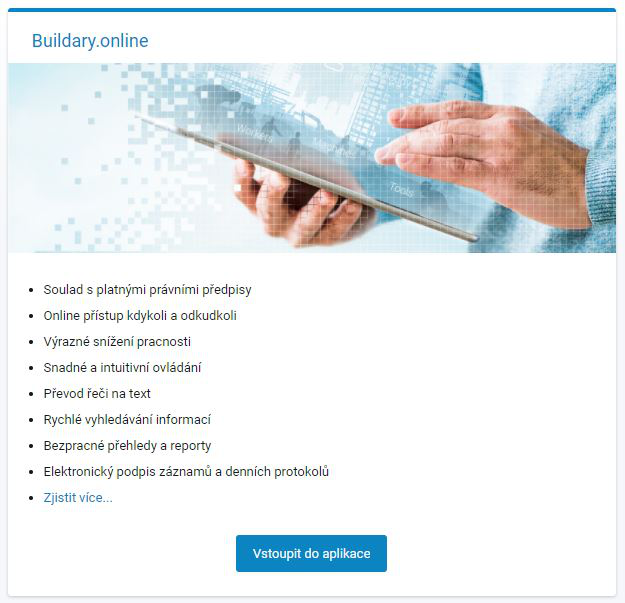
After signing in to your account, you can enter the application and, on your first login, have a Demo Project generated for you. We recommend using this option. The application will not offer it again on subsequent logins. More information about the Demo Project can be found in a separate section of the Help.
Account Management

Clicking the user icon (profile picture) in the upper-right corner displays a window with the name and email address of the signed-in account, as well as an option to log out of the application. To manage your account, click your name.

In the Account window, you can edit your personal information and add a profile picture.
The Change Password button allows you to change your password.
We strongly recommend using profile pictures. In the Project Diary and Ticket Management modules, profile icons are used in many places and significantly improve clarity and the overall visual experience when working with the Buildary application.
Using the Profile Icon

Example of the profile icon being used in the Project Diary module to identify the author of an additional record.

Example of the profile icon being used in the Ticket Management module.
Deleting an Account
If you decide to stop using Buildary altogether and delete your account, contact us at buildary@firstis.eu to request its deletion.